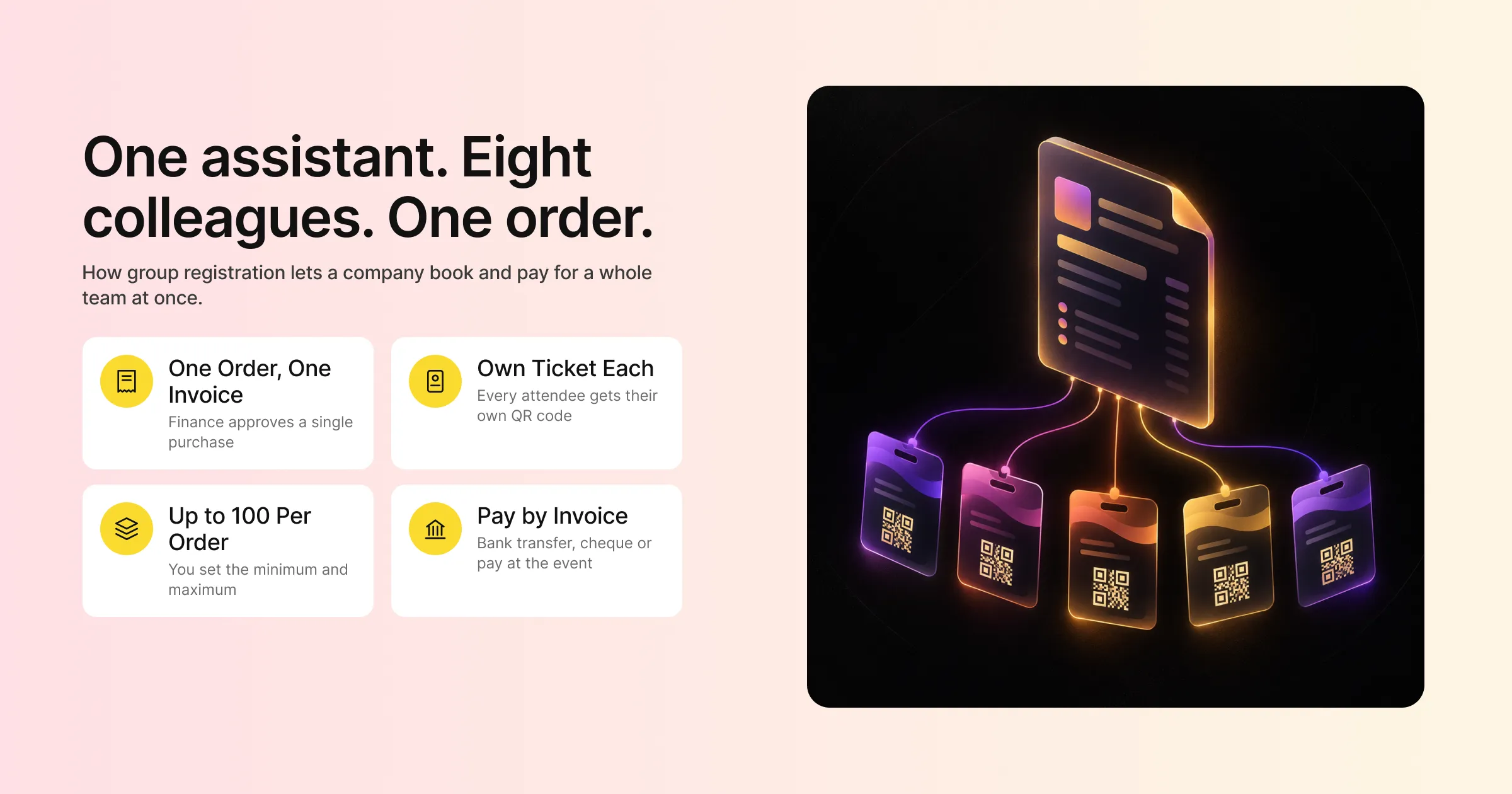
Picture an executive assistant booking eight colleagues onto your conference. If your registration page only handles one person at a time, that assistant fills in the same payment details eight times, receives eight separate receipts and sends finance eight separate expense claims. Some of them will give up halfway through. Others will email you asking for “a group form” and wait for a reply.
Group registration for events solves this. It lets one person, usually called the buyer, register and pay for several attendees in a single order, while each attendee still gets their own record, their own ticket and their own QR code for check-in. For conferences, trade shows, training programmes and corporate events where companies send teams, it is one of the quickest ways to make registration easier and bring in more sign-ups per order.
This guide covers what group registration means, why companies expect it, how it works in Gevme Registration, the setup choices that matter, how to price and restrict group bookings, how to handle changes after an order, and what to plan for on event day.
Key Takeaways
Group registration lets one buyer register and pay for several attendees in one order, while each attendee still fills in their own details and gets their own e-ticket.
In Gevme, the Buyer Form captures the person paying (and appears on invoices), and the Attendee Form captures each person who will attend.
Set minimum and maximum tickets per order to match how companies really book, and keep each order to 100 tickets or fewer.
Offer offline payment methods such as bank transfer or cheque for corporate groups, since many companies pay by invoice through their finance team.
Promo codes with usage limits and access codes for hidden tickets give you flexible ways to offer team rates without publishing a group price to everyone.
Each attendee in a group gets their own QR code, so group members can check in separately on the day even if they arrive at different times.
Buyer data and attendee data are separate records, so decide early who should receive confirmations, invoices and later updates.
What Group Registration Means
Group registration is a registration flow where one person books multiple tickets in a single transaction and provides details for each attendee. The person placing the order is the buyer. The people who will attend are the attendees. Sometimes they are the same person (a team lead booking themselves plus four colleagues), and sometimes they aren’t (an assistant booking a leadership team they won’t join).
This differs from a simple registration form, where each person signs up for themselves. It also differs from bulk importing a list, where your own team loads attendees into the system. In group registration, the company does the work, on your registration page, in one sitting.
Gevme Registration supports three registration types: Registration Form (a single free form for one attendee), Tickets (multiple categories and prices, with group registration) and RSVP (invitation only). Group registration sits under the Tickets type, so it works for both free and paid events.
Why Companies Want to Register Their Teams in One Go
For the buyer, group registration is about time and paperwork. For you as the organiser, it is about getting more attendees per decision.
One Decision, Several Attendees
When a manager decides the team is going, you want that decision to become registrations straight away. If every team member has to register separately, some will put it off and forget. A group booking turns one “yes” into five or ten confirmed attendees.
One Payment and One Invoice
Finance teams prefer a single invoice for a single purchase. Group registration puts all the tickets in one order, billed to one buyer, with one set of payment details. That makes approval easier inside the buying company, which matters a lot for corporate events and B2B conferences.
Less Admin for Your Team
Without group registration, companies email spreadsheets of names and your team keys them in by hand. That is slow, and it is where typos creep in. Letting the buyer enter each attendee’s details on your form keeps the data clean and puts the work where it belongs.
Better Data on Who Is Sending Teams
When orders are grouped, you can see which companies sent the most people. That tells your sales and partnerships team where the strongest relationships are, and it gives sponsors a clearer picture of the organisations in the room.
How Group Registration Works in Gevme
Gevme Registration handles group bookings through two forms and a set of ticket and order settings. Here is how the pieces fit.
The Buyer Form and the Attendee Form
The Buyer Form collects details about the person making the payment or the person to be billed. For free events, it captures the person registering on behalf of a group. First Name, Last Name and Email are compulsory, and you can add fields such as company, phone number and billing address through the form builder. Buyer Form data appears on invoices, so collect what your invoices need.
The Attendee Form collects details for each person attending. In a group order, each attendee has their own form, so you get a separate record per person with their own job title, dietary needs or session choices.
A few rules are worth knowing. When both forms are active, the buyer is not counted as an attendee unless they also register a ticket for themselves. If you disable the Buyer Form, the first attendee becomes the buyer. After registration, updating an attendee’s data doesn’t update the buyer’s data, since they are separate records. The forms and form builder articles in the Gevme knowledge base cover each form in detail.
Four Ways to Set Up Tickets for Groups
Gevme’s corporate event workflow describes four standard setups. Choose the one that matches how your attendees buy.
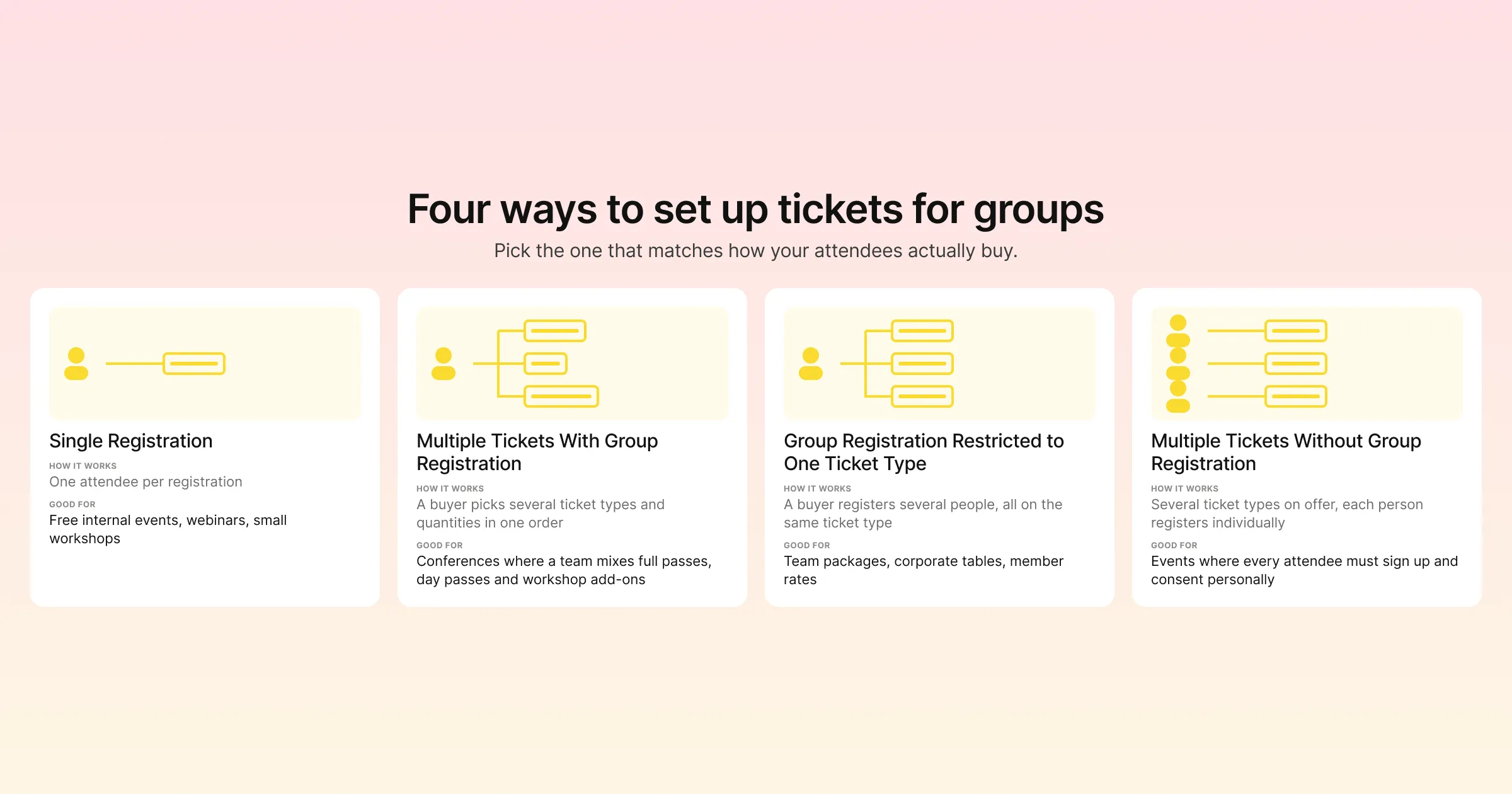
| Setup | How it works | Good for |
|---|---|---|
| Single registration | One attendee per registration | Free internal events, webinars, small workshops |
| Multiple tickets with group registration | A buyer can pick several ticket types and quantities in one order | Conferences where a team mixes full passes, day passes and workshop add-ons |
| Multiple tickets with group registration, restricted to one ticket type | A buyer can register several people, but all on the same ticket type | Team packages, corporate tables, member rates |
| Multiple tickets without group registration | Several ticket types on offer, but each person registers individually | Events where every attendee must sign up and consent personally |
The “restrict to one ticket type” option is a setting on the tickets page that forces the participant to buy only one type of ticket at a time. It keeps orders tidy when you are selling team packages at a set rate.
Order Limits and Capacity
Gevme lets you set how many tickets of a type one person can buy in a single order, using minimum and maximum tickets per order. Use the minimum for team packages (for example, a “Team of 5” ticket that needs at least five), and the maximum to stop one company from taking half the room.
Keep each order to a maximum of 100 tickets. Gevme advises this because the e-tickets attach to the confirmation email, and very large orders make the email too heavy. If a company wants to send more than 100 people, split the booking into two orders.
Event capacity sits above all of this. It overrides individual ticket quantities, so total registrations across every ticket type can’t pass your event capacity.
Payments and Invoices for Corporate Buyers
Corporate buyers pay in different ways, and your payment options should reflect that. Gevme supports credit card payments through 20+ payment gateways (including Stripe, Adyen, PayPal and regional gateways such as eNETS and OCBC), plus direct debit, bank transfer, cheque, pay at the event and Gevme Pay.
For groups, offline methods such as bank transfer and cheque matter most, because many companies can only pay against an invoice. When a group chooses an offline method, the order stays unpaid until you record the payment by moving it to Completed Payment. Unpaid orders get an acknowledgement email 15 minutes after registration, so the buyer knows the booking is in.
Invoices and receipts attach to confirmation emails, and invoice PDFs can be downloaded. Tax can be inclusive or exclusive and is calculated per line item after discounts, which keeps mixed-ticket group orders accurate. One thing to set early: your event currency locks after the first order.
Confirmations and E-Tickets for Every Attendee
When a group order completes, Gevme sends a confirmation to the buyer and to each ticket holder. A confirmation email can carry up to 100 e-tickets. Each e-ticket is a PDF with a unique QR code, so every attendee has their own pass, even though one person paid for all of them.
This matters for the buyer, who needs proof of purchase, and for each attendee, who needs their own ticket to check in.
Designing a Group Registration Flow That Works
The settings above give you the building blocks. These choices decide whether the flow feels easy to a busy assistant booking a team.
Decide Who the Buyer Is
Think about who books groups for your event. For a trade show, it may be a marketing manager. At a government conference, it may be an administrator placing orders for several departments. Meanwhile, for a training programme, it may be HR. Shape the Buyer Form around that person: company name, billing address, a purchase order number field if your buyers need one, and a phone number for payment follow-up.
Ask Each Attendee Only What You Need
Every field on the Attendee Form is multiplied by the size of the group. A form with 15 fields becomes 150 fields for a team of ten. Keep it tight, and use Gevme’s field settings to help:
Show fields only for certain ticket types, so a workshop question only appears for people on the workshop ticket.
Use conditional follow-up questions so extra fields appear only when an answer needs them (for example, a dietary details field that shows only after someone ticks “special dietary needs”).
Mark email as a unique-value field to block duplicate registrations of the same person.
Use pre-filled fields for returning attendees and invitees, so known contacts don’t retype their details.
Offer Team Rates Without Publishing Them to Everyone
Group pricing doesn’t need a public “group discount” line on your page. Gevme promo codes can take a fixed amount off, a percentage off or set a special price, with usage limits and start and end dates. You can create a code for a specific company’s team, or bulk generate codes for a list of partner organisations.
Access codes work differently: they unlock hidden tickets. Create a hidden “Corporate Team Package” ticket, share the access code with the companies you’re working with, and only they can see and buy it. Partner-linked codes also track registrations per partner, which is useful when associations or media partners bring groups to your event.
Control Who Can Book as a Group
Some events need to check who is registering. Gevme’s registration rules let you allow or block registrations based on form answers, contact lists or another event. Membership validation can check a member’s email, mobile number or Google login before they register. For invitation-only corporate events, you can make the event private, invitation only or password protected.
Make the Group Option Easy to Find
Buyers should know group booking is possible before they start. Say it on your event page near the ticket list (“Booking for your team? Add several tickets to one order”). If you sell team packages, give them clear names and put the headcount in the ticket name.
Group Registration Setup Checklist
Use this checklist before you open registration.
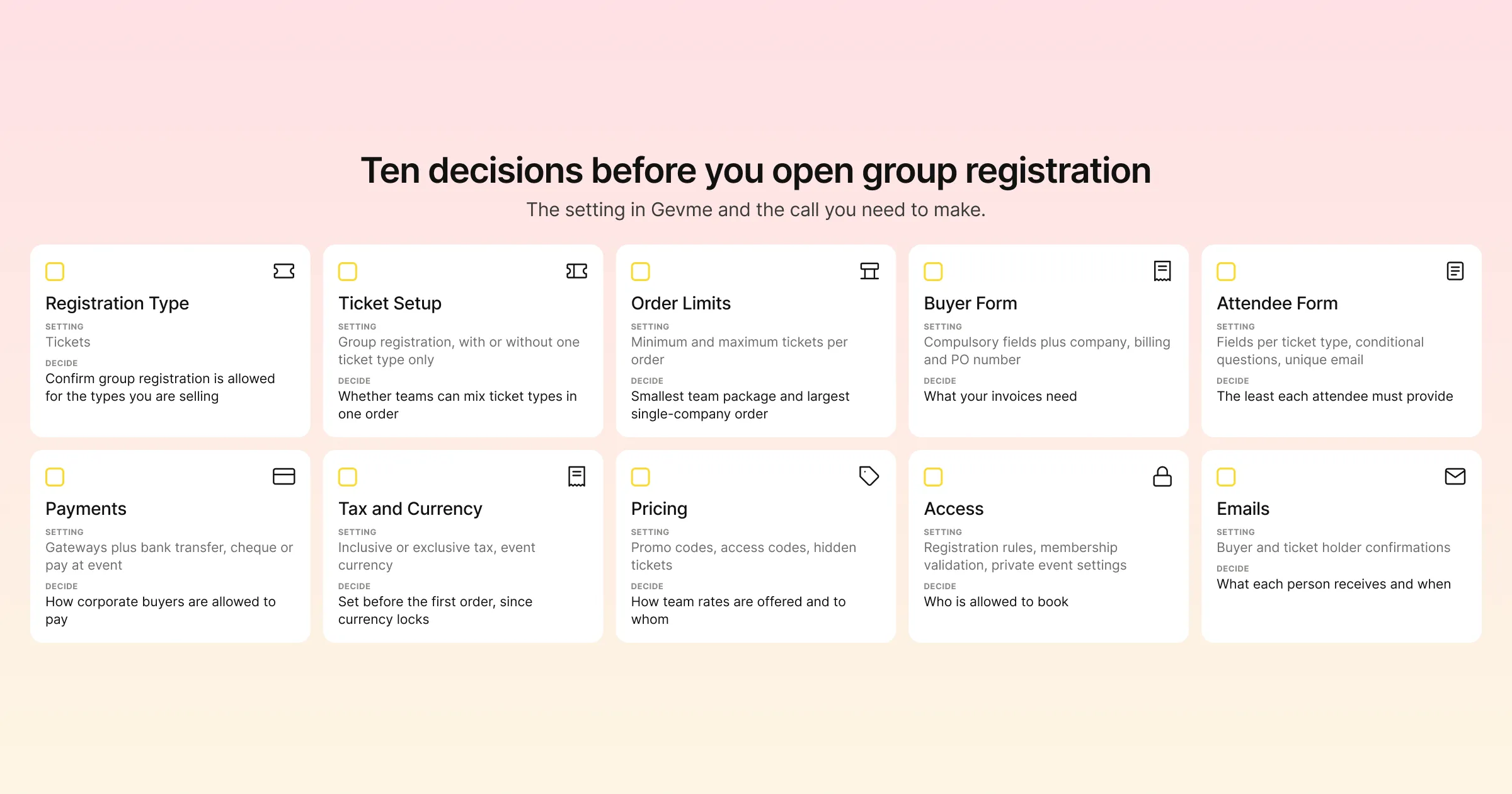
| Area | Setting in Gevme | What to decide |
|---|---|---|
| Registration type | Tickets | Confirm group registration is allowed for the ticket types you’re selling |
| Ticket setup | Group registration, with or without “one ticket type only” | Whether teams can mix ticket types in one order |
| Order limits | Minimum and maximum tickets per order | Smallest team package and largest single-company order |
| Buyer Form | Compulsory fields plus company, billing and PO number | What your invoices need |
| Attendee Form | Fields per ticket type, conditional questions, unique email | The least each attendee must provide |
| Payments | Gateways plus bank transfer, cheque or pay at event | How corporate buyers are allowed to pay |
| Tax and currency | Inclusive or exclusive tax, event currency | Set before the first order, since currency locks |
| Pricing | Promo codes, access codes, hidden tickets | How team rates are offered and to whom |
| Access | Registration rules, membership validation, private event settings | Who is allowed to book |
| Emails | Buyer and ticket holder confirmations | What each person receives and when |
Handling Changes After a Group Books
Group orders change. Someone falls ill, a new hire joins the team, a manager swaps one person for another. Plan for this before registration opens.
Name Changes and Substitutions
The Admin Form lets your internal staff make changes to registration records. Use it to update attendee details when a company swaps one person for another. Remember that buyer and attendee records are separate: editing an attendee doesn’t change the buyer’s details, which is usually what you want, since the same person is still paying.
Write your substitution policy in the confirmation email so buyers know how to request a change and by when.
Cancellations and Refunds
Refunds are recorded in Gevme. If the group paid through Stripe Checkout, refunds process automatically. Gevme Pay refunds are processed by Gevme Finance. For other methods, such as bank transfer, the organiser refunds the buyer directly and records it in Gevme. Put your group cancellation terms (for example, partial refunds for reducing team size) on the event page so there are no surprises.
Adding People to an Existing Group
When a company wants to add someone after their order is complete, the simplest route is a new order from the same buyer. If you gave that company a promo code or access code, check its usage limit so the new booking still gets the team rate.
Event Day: Checking In Groups
Groups often arrive together, but not always. Because every attendee has their own QR code, each person can check in on their own, whenever they arrive.
Gevme’s onsite check-in supports web check-in in a browser, Android kiosks that work offline, phone check-in and counter sets with laptops, printers and scanners. Staff can scan QR codes, or search by name, email, company, registration ID and up to five extra fields. Searching by company helps when a team lead turns up and asks to collect badges for colleagues. Check-in with badge printing takes around 5 to 10 seconds per person, and badge printing rules can differ by ticket type, so a team package badge can look different from a standard pass.
If someone in a group forgets their QR code, staff can find them by name or company and print their badge on demand.
Reporting on Group Registrations
After registration opens, you’ll want to know which companies are sending teams and how group orders are tracking. Gevme’s registration reports cover tickets, orders, attendees, surveys and merchandise. You can add up to five aggregations to a report, export to CSV and run global reports across events.
The orders report shows each group booking as a single order with its buyer. The attendees report shows every individual. Put them side by side and you can see average group size, top companies by headcount and how many group orders are still waiting on offline payment. That last number is worth checking weekly in the run-up to the event.
Large, complex events show how far this can go. NRF 2025 Retail’s Big Show Asia Pacific handled registration for 9,500 retail attendees on Gevme with multi-tier ticketing, add-ons and a CRM integration.
A Few Terms Worth Knowing
Buyer: the person who places and pays for an order, whose details appear on the invoice.
Attendee: a person who will attend the event and holds their own ticket.
Access code: a code that unlocks hidden tickets, often used for team or VIP packages.
Order: a single transaction, which can contain many tickets for many attendees.
Pro Tip: Build a Named Team Package
Instead of a general “group discount”, create a hidden ticket named for the package and headcount, for example “Team Pass (5 people)”, with a minimum of five tickets per order and the “one ticket type only” restriction switched on. Share it through an access code with the companies your sales team is talking to. Buyers see exactly what they are getting, finance sees one clear line item, and you get five confirmed attendees from every order. Track the access code’s usage to see which companies took it up, and use that list to invite them back next year.
Frequently Asked Questions
Group registration for events is a registration flow where one person, the buyer, registers and pays for several attendees in a single order. Each attendee still has their own record and ticket, so they can check in separately on the day.
Yes. In Gevme Registration, the buyer completes the Buyer Form and pays once, and each attendee in the order has their own Attendee Form. The buyer receives the confirmation and invoice, and each ticket holder receives their own e-ticket with a unique QR code.
You set the limit using minimum and maximum tickets per order. Gevme recommends keeping each order to 100 tickets or fewer, because e-tickets attach to the confirmation email. Larger teams can book across two or more orders.
Use a promo code with a percentage off, fixed amount off or special price, and set usage limits and dates. For team packages, create a hidden ticket and share an access code with the companies you want to offer it to, so the rate isn’t shown publicly.
Yes. Gevme supports bank transfer, cheque, direct debit and pay at the event alongside card payments. Offline orders stay unpaid until you record the payment by moving the order to Completed Payment, and invoice PDFs can be downloaded for the buyer’s finance team.
Your team can update the attendee’s details using the Admin Form. Buyer and attendee records are separate, so changing an attendee doesn’t change the buyer’s details. Set out your substitution rules in the confirmation email so buyers know how to ask.
Yes. Every attendee in a group order receives their own PDF e-ticket with a unique QR code. It’s attached to the confirmation email, stored in Gevme Wallet and downloadable from the confirmation page.
Conclusion: Make It Easy for Companies to Say Yes to the Whole Team
Group registration turns one buying decision into several attendees. Pick the ticket setup that matches how companies book, keep the Attendee Form short, offer offline payment for corporate buyers, and use promo codes or access codes to give team rates to the right people. Then plan for changes and for event day, so each person in the group can check in on their own and your team isn’t untangling spreadsheets at the counter.
Gevme is event management software built by the industry, for the industry. Group registration is part of Gevme Registration, which also handles ticketing, payments, emails, check-in and reports, with attendee data flowing through to your event website and app. See how it fits your next conference on the event registration software page, or request a demo to walk through a group booking flow with the team.