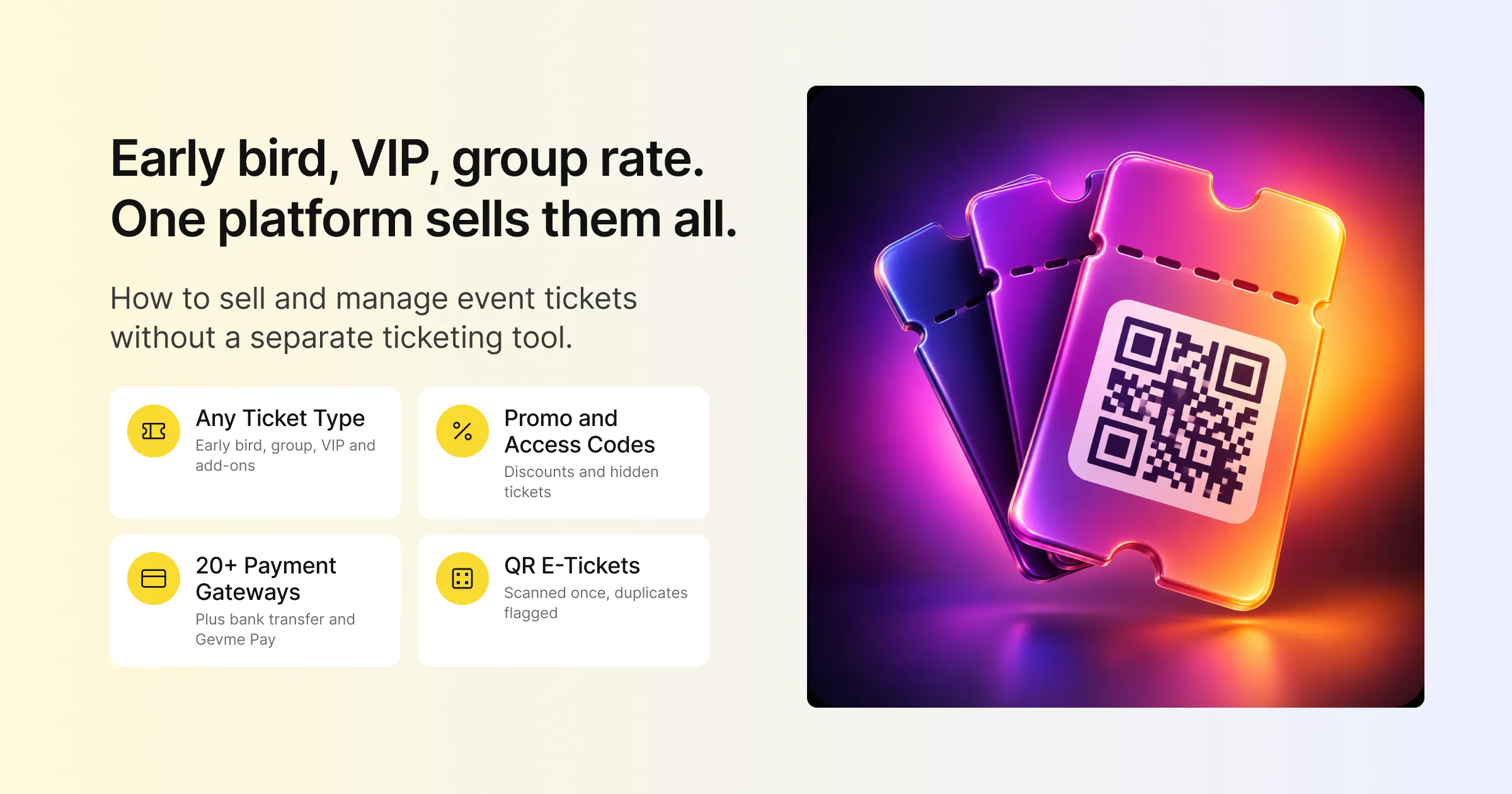
Selling tickets sounds simple until you do it. You need an early bird price that switches off on the right day, a group rate for companies sending five people, a hidden VIP ticket for sponsors, and a way to take payment from the finance team that only pays by bank transfer. Then you need every one of those people to walk through the door with a ticket that scans.
Many organisers handle this with a standalone ticketing tool bolted onto everything else. Tickets sell in one place, attendee details sit in another, emails go out from a third, and check-in runs off an export. As a result, each handover is a chance for a missing name or a mismatched payment.
Event ticketing software is the part of an event platform that creates ticket types, sets prices, takes payment and issues tickets that can be scanned at the door. When it lives inside your event registration software, the ticket, the attendee record, the payment and the check-in all belong to the same order. This guide covers why ticketing works best inside your registration platform, how to set up ticket types and pricing, how checkout and payments work, how tickets reach attendees, what happens after the sale, and how to scan tickets on event day, all using Gevme Registration as the worked example.
Key Takeaways
- Keep ticketing inside your registration platform so each ticket, attendee record, payment and check-in belongs to one order.
- Set every ticket type with its own price, quantity, sales dates and visibility, and use overall event capacity as your safety limit.
- Run early bird pricing through a separate ticket type or a time-limited promo code, and use access codes to reveal hidden VIP or partner tickets.
- Offer card payments through a gateway your finance team trusts, plus offline options such as bank transfer for corporate buyers.
- Send every attendee a PDF e-ticket with a unique QR code, attached to their confirmation email and downloadable from the confirmation page.
- Decide your refund process before tickets go on sale, because who processes the refund depends on how the attendee paid.
- Scan tickets at the door with duplicate and invalid scan handling, so each ticket is only accepted once.
Why Ticketing Belongs Inside Your Registration Platform
A standalone ticketing tool can sell a ticket well. However, the trouble starts with everything that happens around the sale.
One Order, One Attendee Record
In Gevme Registration, a ticket is part of an order, and each ticket holder has their own attendee record with their own form answers. When a buyer purchases five tickets for colleagues, each colleague fills in their own details, gets their own e-ticket, and checks in separately. There is no second list to keep in sync.
Payments That Match Orders
When payments arrive through the same system that issued the tickets, every payment is already tied to an order. Finance can see paid, unpaid and refunded orders in one place, and offline payments such as bank transfers are recorded against the right order.
Your Checkout, Your Event Brand
Tickets sell from your own registration landing page, or from a widget embedded on your event website, so buyers stay with your event brand throughout checkout.
Check-In Reads the Same Tickets
On event day, the scanner reads the same QR codes that the system issued, so there is no export to prepare and no risk of scanning against yesterday’s list. A ticket bought at 7am is valid at 9am.
Setting Up Ticket Types
Every ticketed event starts with ticket types. In Gevme Registration, choose the Tickets registration type, then create a ticket for each price point or audience.
What Each Ticket Controls
Each ticket has its own settings:
- Price: paid or free.
- Quantity: how many of this ticket can be sold.
- Sales start and end dates: when the ticket is on sale.
- Visibility: always shown, or hidden automatically when it is not on sale.
On top of that, you set the minimum and maximum number of tickets per order, up to 100 tickets in a single order. The overall event capacity sits above all ticket quantities, so even if your ticket quantities add up to more than the venue holds, sales stop when capacity is reached.
You can also show different form fields for different ticket types. You can ask speakers for a bio, exhibitors for a stand number, and delegates for dietary needs, all within the same event.
Common Ticket Types and How to Set Them Up
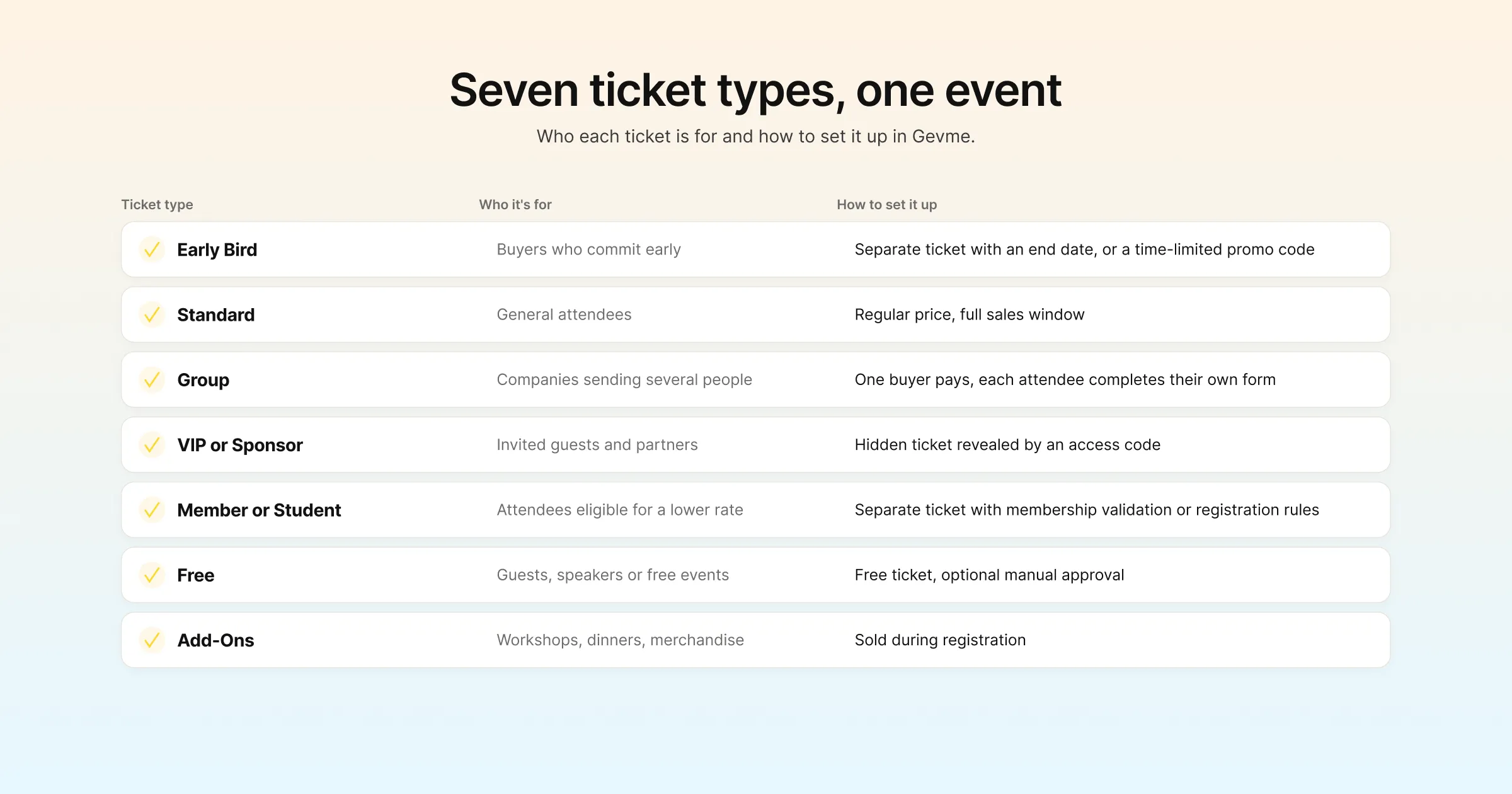
| Ticket type | Who it is for | How to set it up in Gevme |
|---|---|---|
| Early bird | Buyers who commit early | A separate ticket with an end date, or a time-limited promo code |
| Standard | General attendees | A ticket with the regular price and full sales window |
| Group | Companies sending several people | Group registration: one buyer pays, each attendee completes their own form |
| VIP or sponsor | Invited guests and partners | A hidden ticket revealed by an access code |
| Member or student | Attendees eligible for a lower rate | A separate ticket, with membership validation or registration rules to check eligibility |
| Free | Guests, speakers or free events | A free ticket, optionally with manual approval enabled via support |
| Add-ons | Workshops, dinners, merchandise | Merchandise and product add-ons sold during registration |
Pricing Strategies That Work
Once your ticket types are set, pricing tools help you sell more of them without constant manual changes.
Early Bird Pricing
There are two ways to run early bird pricing in Gevme. You can create a separate early bird ticket with its own end date, which then hides automatically when the sales window closes. Or you can keep one ticket and offer a time-limited promo code. The separate ticket is clearer for buyers because they see the price straight away. The promo code works well when you want early bird pricing for a specific audience, such as last year’s attendees.
Promo Codes
Gevme promo codes can take a fixed amount off, a percentage off, or set a special price. In addition, each code can have a usage limit and its own start and end dates. You can create codes one by one, in bulk, or auto-generate them, and share promo URLs that apply the code automatically when someone clicks.
Partner-linked codes are especially useful for events with media partners, associations or affiliates. Each partner gets their own code, and you can track how many registrations each partner brought in.
Access Codes for Hidden Tickets
Access codes reveal tickets that you hide from the public page. For example, use them for sponsor passes, speaker tickets, VIP packages or a special rate for a single company. The ticket stays invisible to everyone else, so you avoid questions from buyers who cannot get that price.
Add-Ons and Merchandise
You can also sell paid merchandise and products during registration, from workshop places to event dinners and branded items. You can track usage, sales and inventory from the backend, so you know how many dinner seats are left without counting by hand.
Checkout and Payments
The checkout is where interest turns into revenue, so it needs to be short, clear and trusted.
Payment Options
Gevme Registration supports card payments through more than 20 payment gateways, including Stripe, Adyen and PayPal, and regional gateways such as eNETS, OCBC and Xfers. If you would like to start selling without setting up your own gateway, Gevme Pay is a built-in option, with Gevme Finance handling payouts.
For buyers who cannot pay by card, you can offer direct debit, bank transfer, cheque or payment at the event. Once the money arrives, you move orders paid this way to Completed Payment. Unpaid orders automatically receive an acknowledgement email 15 minutes after registration. The payment gateway page covers the options in more detail.
Taxes and Fees
You can set taxes as inclusive or exclusive, and Gevme calculates them per line item after discounts. You can also add fees before tax, after tax or per payment method, which is useful if you want to pass on a card processing fee for one method only.
Choose your event currency before the first sale, because it locks after the first order.
Invoices and Receipts
Invoices and receipts can attach to confirmation emails, and you can download invoice PDFs at any time. However, automated invoicing is available as a paid add-on.
Recovering Abandoned Checkouts
Some buyers start checkout and get distracted. The Abandoned Cart add-on, set up through your account manager, captures the buyer once they have entered their name and email, then sends up to 5 reminder emails with a link to finish their purchase.
Getting Tickets to Attendees
A ticket is only useful if the attendee can find it on the day.
E-Tickets With QR Codes
Gevme issues every ticket as a PDF e-ticket with a unique QR code. It is attached to the confirmation email, which goes to the buyer and to each ticket holder, and can also be downloaded from the confirmation page. One confirmation email can carry up to 100 e-tickets, which covers even large group bookings.
Gevme Wallet
On Pro and Enterprise plans, Gevme Wallet gives attendees a self-service place to find their tickets later, so they are not searching their inbox at the venue entrance.
SMS Confirmations
If your attendees prefer text messages, you can send confirmations with the ticket QR code by SMS through the organiser’s own smsdome account.
Managing Tickets After the Sale
Selling the ticket is the start of the relationship. These tools handle what comes next.
Orders Management
Every order sits in one place with its buyer, tickets, payment method and status. Your team can find an order in seconds when a buyer calls with a question.
Refunds
Gevme records refunds, and how the money moves back depends on how the attendee paid. On Stripe Checkout, refunds process automatically. Meanwhile, Gevme Finance processes refunds on Gevme Pay. For other payment methods, the organiser refunds the attendee directly and records it in Gevme. Refunds, credit notes and payment transactions are included from the Registration Pro plan.
Write your refund policy before tickets go on sale and put it on your registration page, so buyers know the rules before they pay.
Waiting Lists for Sold-Out Events
When a ticket sells out, a waiting list keeps demand alive. You release tickets manually when places open up, and people on the waiting list get an email with a link to register. You can set an optional expiry time on that link, so unclaimed places move to the next person quickly.
Changes and Communication
Email campaigns let you message ticket holders by list, including scheduled reminders and “know before you go” updates. Smart attendee lists let you send different campaigns to different groups, so VIPs get VIP instructions and workshop attendees know which room to find, and personalisation tags address each attendee by their own details.
Scanning Tickets on Event Day
Ticket scanning is where your ticketing setup meets real people. Gevme’s onsite check-in reads the QR code on each e-ticket through web check-in in a browser, phone check-in with Rocket Mode for fast scanning, self-service kiosks that keep working offline, or a staffed counter set.
Gevme flags duplicate and invalid scans, so the same ticket cannot get two people through the door. In addition, session check-in and check-out let you control entry to paid workshops or limited-capacity rooms. Walk-in buyers can register and pay at the counter, and badges print on demand, typically in 5 to 10 seconds per attendee.
Selling Tickets From Your Own Website
Most ticket sales start on an event website. Gevme gives you several ways to sell from yours:
- An embeddable tickets widget, added by script or iFrame
- A call-to-action button that opens registration
- A text link for emails and social posts
- A calendar widget listing upcoming events
If you use Gevme Omnichannel for your event website, new confirmed registrations sync into it in real time, so attendee access and engagement features know who has bought a ticket.
For marketing teams, Google Analytics and Google Tag Manager work with the registration flow, UTM and source values are stored per order, and the confirmation page has a data layer for conversion tracking in your ad platforms.
Reports That Show How Tickets Are Selling
Registration reports show tickets sold by type, orders, attendees and merchandise, with up to 5 aggregations per report and CSV export. Cross-event reports also let you compare this year’s early bird sales against last year’s. For large events, a real-time BI dashboard tracks sign-ups and check-in trends as they happen.
Which Plan Covers What
Ticketing is part of Gevme Registration. The table below shows where key ticketing features sit, based on the plan comparison on Gevme’s pricing page.
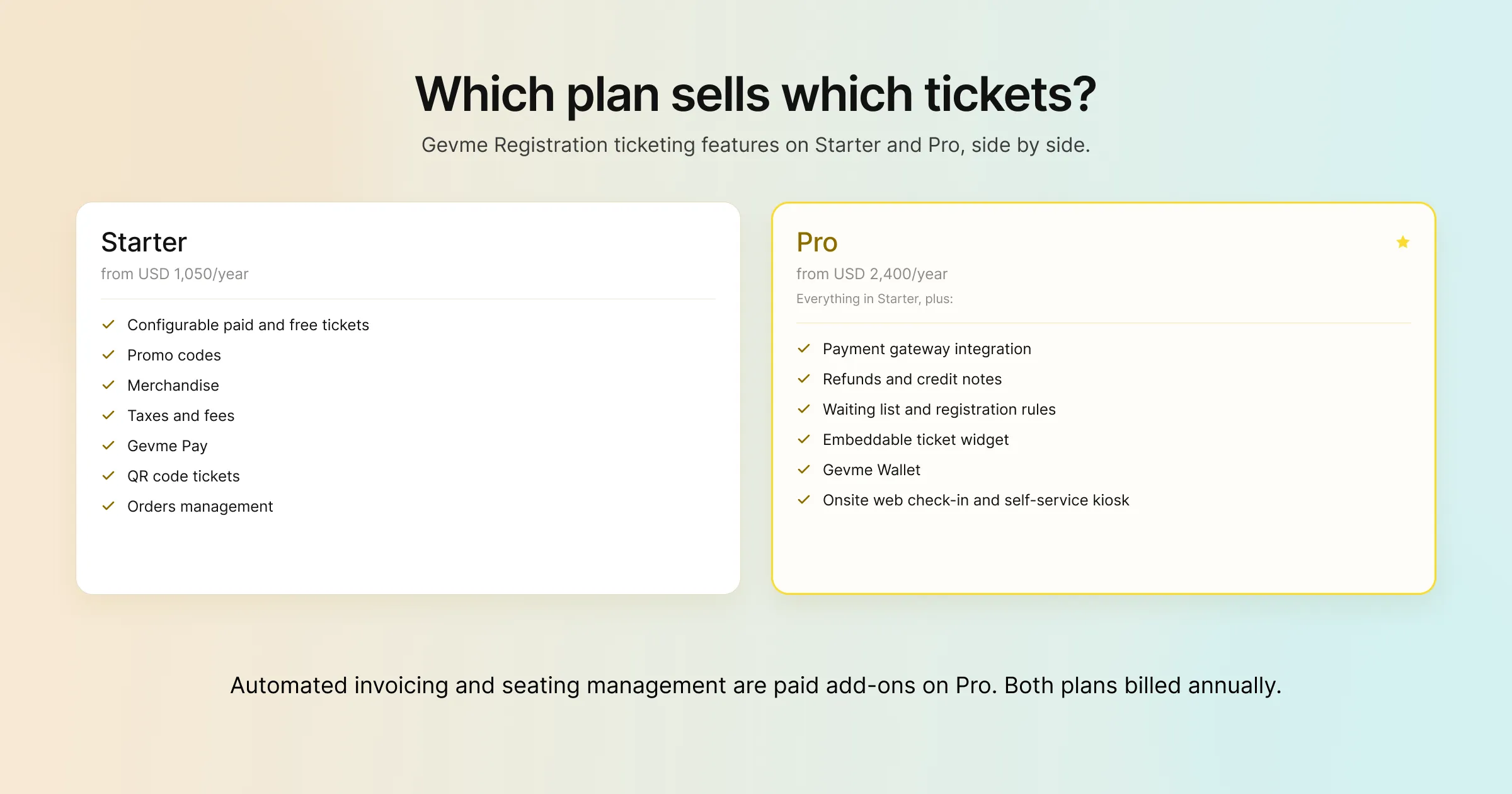
| Ticketing feature | Starter (from USD 1,050 per year) | Pro (from USD 2,400 per year) |
|---|---|---|
| Configurable tickets for paid and free events | Included | Included |
| Promo codes | Included | Included |
| Merchandise | Included | Included |
| Taxes and fees | Included | Included |
| Payment collection through Gevme Pay | Included | Included |
| QR code tickets to buyers and attendees | Included | Included |
| Orders management | Included | Included |
| Payment gateway integration | Not included | Included |
| Refunds, credit notes and payment transactions | Not included | Included |
| Waiting list and registration rules | Not included | Included |
| Embeddable ticket widget | Not included | Included |
| Gevme Wallet | Not included | Included |
| Onsite web check-in and self-service kiosk | Not included | Included |
| Automated invoicing, seating management | Not included | Paid add-on |
Both plans are billed annually, and extra attendees beyond your plan allowance start from USD 2.10 each. Finally, Gevme quotes Enterprise plans on request.
Ticketing at Scale
NRF 2025 Retail’s Big Show Asia Pacific handled registration for 9,500 attendees with multi-tier ticketing, add-ons and a CRM integration on Gevme. Read the NRF story. Tech Week Singapore 2024 ran 7 parallel events for more than 26,000 attendees, using 30 kiosks and over 150 mobile devices at the venue. Read the Tech Week Singapore story.
A Few Terms Worth Knowing
- Access code: a code that reveals a ticket hidden from the public registration page.
- Event capacity: the maximum number of attendees for the whole event, which overrides individual ticket quantities.
- Payment gateway: the service that processes card payments and moves the money to your account.
- Data layer: code on the confirmation page that passes purchase details to analytics and ad tracking tools.
Pro Tip:
Before tickets go on sale, run a “sold out” rehearsal. Set a test ticket with a quantity of two, buy both, then try to buy a third and check the waiting list email arrives. Release one place and confirm the link works and expires when you expect. Ten minutes of testing tells you exactly what buyers will see when your most popular ticket sells out, which is the moment your inbox gets busiest.
Frequently Asked Questions
Event ticketing software is a platform that lets organisers create ticket types, set prices, take payment and issue tickets that can be scanned at the event. In Gevme, ticketing is part of Gevme Registration, so tickets, attendee records, payments and check-in sit in one system.
You do not need a separate ticketing tool when your registration software already includes ticketing. Gevme Registration covers paid and free tickets, promo codes, payments, e-tickets with QR codes, refunds and ticket scanning, so there is no second tool to connect.
Set up early bird tickets by creating a separate ticket with its own price and sales end date, or by offering a time-limited promo code on your standard ticket. In Gevme, a ticket can hide automatically when it is no longer on sale.
Yes. Gevme uses access codes to reveal hidden tickets, so VIP, sponsor or speaker tickets stay off the public page and only people with the code can buy them.
Refunds in Gevme are recorded against the order, and the payment method decides who moves the money. Stripe Checkout refunds process automatically, Gevme Pay refunds are handled by Gevme Finance, and other methods are refunded by the organiser directly.
Yes. Gevme Registration supports bank transfer, direct debit, cheque and payment at the event alongside card payments, and your team records offline payments by moving the order to Completed Payment.
One person can buy up to 100 tickets in a single order in Gevme, and you can set your own minimum and maximum per order for each event.
Conclusion: Sell, Manage and Scan in One Place
Ticketing works best when it sits inside the system that also holds your attendees, payments and check-in. Set clear ticket types with their own dates and quantities, use promo and access codes to price for different audiences, offer the payment methods your buyers need, and plan refunds and waiting lists before you open sales. When every ticket is part of one order, your reports, emails and door scanning all work from the same list.
Gevme Registration brings ticketing, payments, emails, check-in and reporting together, and connects to Gevme Omnichannel when your event also needs a website, virtual venue or mobile app. To see how your ticket structure would look in Gevme, request a demo.