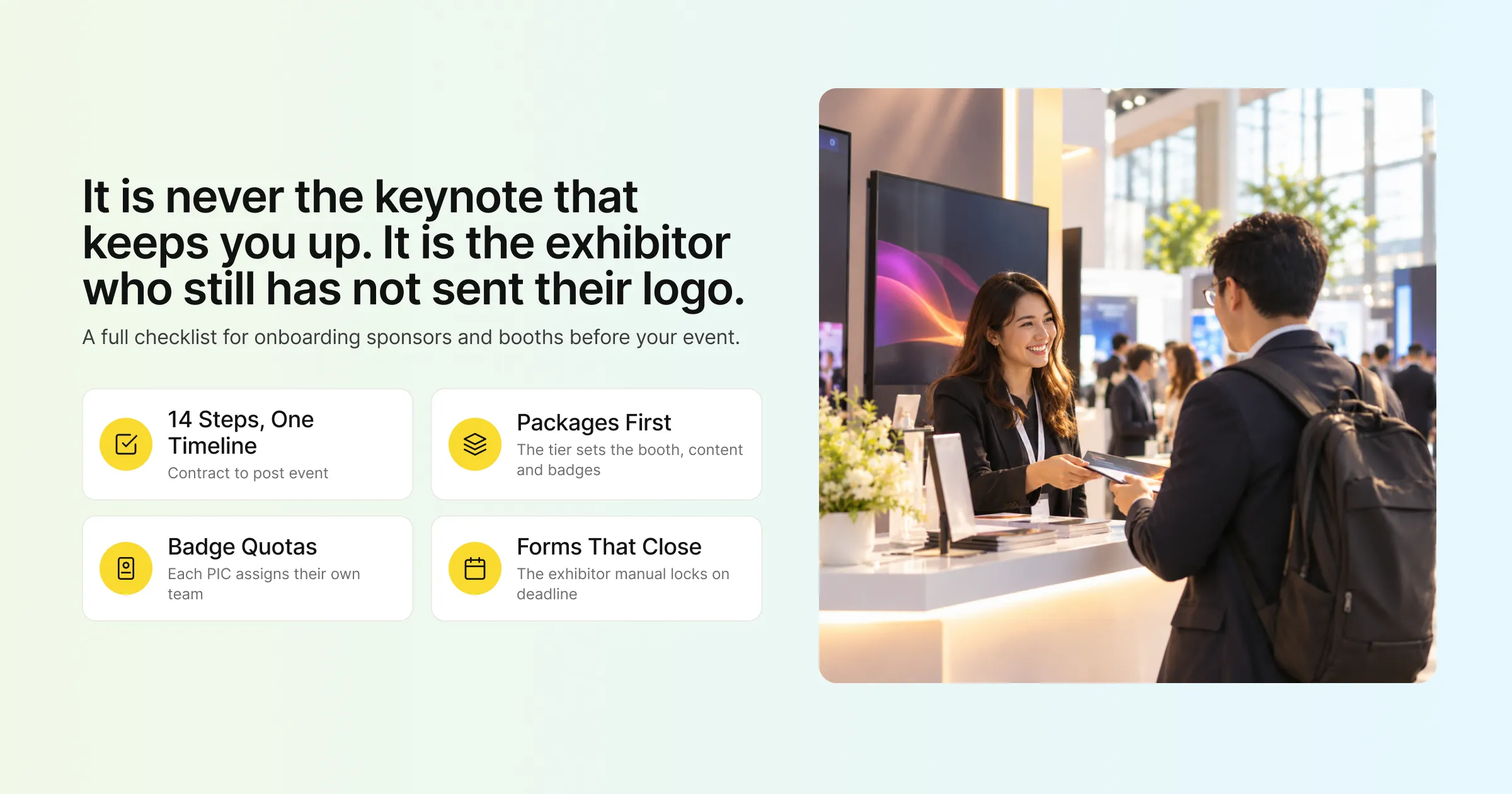
Ask any trade show organiser what keeps them up at night in the final month and the answer is rarely the keynote. It’s the exhibitor who still hasn’t sent their logo, the sponsor who registered twelve staff on a package that includes six badges, the booth that ordered extra power by email three days after the deadline, and the inbox full of “Where do I upload our brochure?” messages.
Exhibitor management is everything an organiser does to get sponsors and exhibitors from signed contract to a working booth: setting up their packages, giving them access to a portal, collecting their company details and booth content, allocating staff badges, gathering service forms and getting their lead scanning ready. Exhibitor registration is the part of that process where each company and its team are formally set up in your event system. Do it well and exhibitors arrive prepared. Leave it to email and spreadsheets and your team spends event week chasing details by hand.
This guide covers a full exhibitor registration checklist, a timeline for when each step should happen, how to define packages and set up companies in Gevme, how exhibitors complete their profiles and booths, how badge quotas and the online exhibitor manual work, how to prepare lead scanning and meetings, and what to check on event day and afterwards.
Key Takeaways
Define your sponsor and exhibitor packages before you invite anyone, because the package decides each company’s booth template, content allowance and access to features.
In Gevme, organisers create or bulk import companies, assign each one a package, and add booth administrators who receive an email invitation to the exhibitor portal.
Give each exhibitor a single person in charge (PIC) and a badge quota, so their team can claim badges themselves and you can see who has fully or partly redeemed.
Move service forms (stand fittings, power, furniture) into an online exhibitor manual with deadlines, so forms lock automatically after the cut-off date.
Track portal logins and form completion weekly, and send reminders only to exhibitors with incomplete items using smart lists and campaigns.
Set up lead scanning before the event, with booth staff invited to the Gevme app and booth admins ready to export leads as a CSV file.
Use the organiser view of each exhibitor’s portal to troubleshoot problems quickly, since you see exactly what the exhibitor sees.
Why Exhibitor Registration Needs Its Own Process
Exhibitors aren’t attendees, and treating them like attendees causes most onboarding problems. An attendee registers for one person and needs a ticket. An exhibitor is a company with a contract, a package, several staff, a booth to build, content to upload, forms to submit and leads to capture.
Exhibitors also bring a large share of revenue at most trade shows and many conferences. A poor onboarding experience costs more than staff time. It shapes whether the company rebooks next year.
A clear exhibitor registration process gives you three things:
Control: each company gets exactly what its package includes, from badges to booth features.
Visibility: you can see at a glance who has logged in, completed their profile, submitted forms and redeemed badges.
Self-service: exhibitors update their own details and booth content, so your team stops acting as a copy-and-paste service.
The Exhibitor Registration Checklist
Use this checklist as the backbone of your exhibitor onboarding. The timeline column is a typical starting point for a mid-sized trade show or conference, so adjust it for your event.
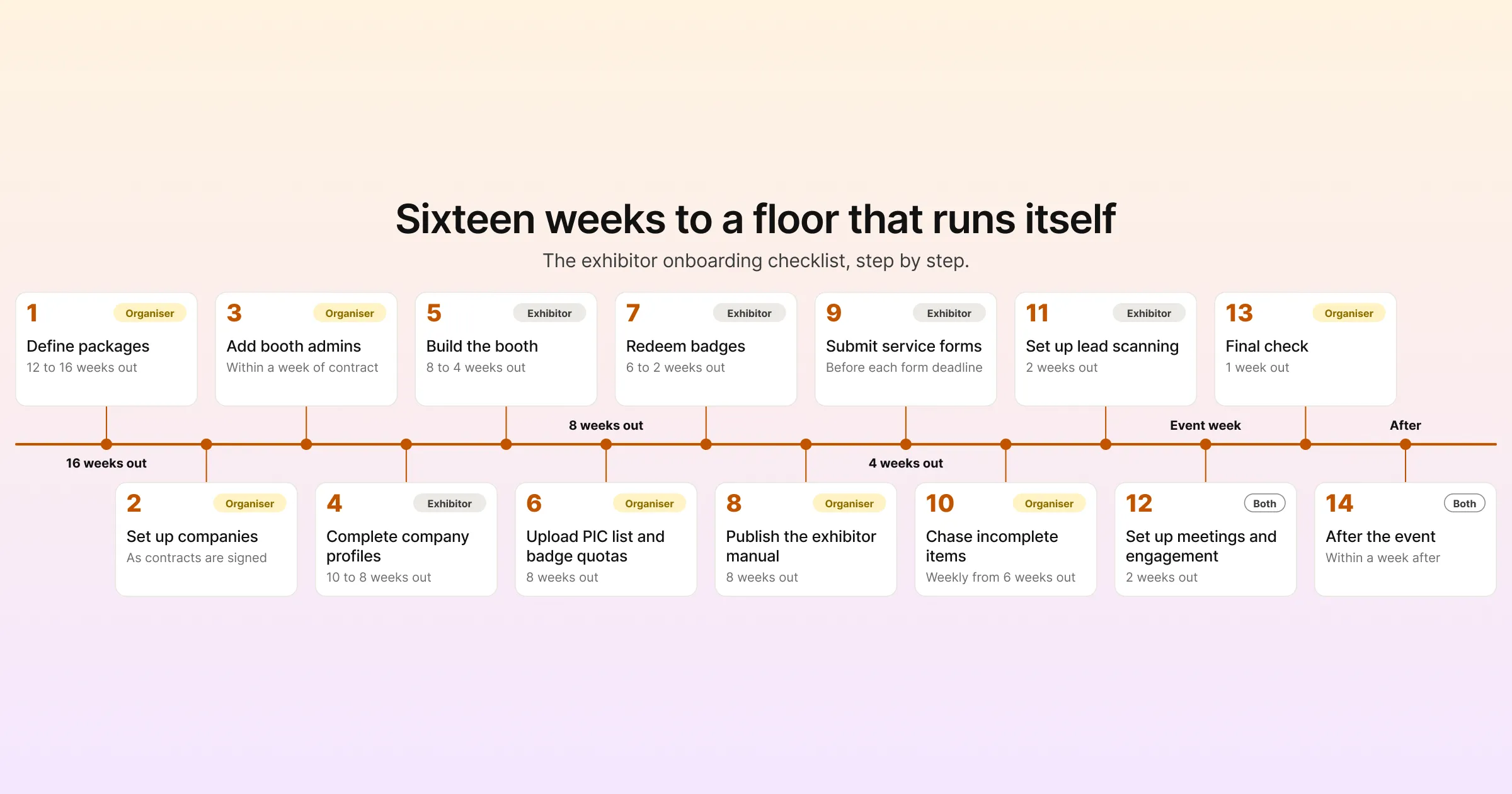
| Step | What to do | When | Who owns it |
|---|---|---|---|
| 1. Define packages | Set up each sponsor and exhibitor tier with its booth template, content allowance and features | 12 to 16 weeks out | Organiser |
| 2. Set up companies | Create or import each exhibiting company and assign its package and tags | As contracts are signed | Organiser |
| 3. Add booth admins | Add the main contact for each company and send the portal invitation | Within a week of contract | Organiser |
| 4. Complete company profiles | Exhibitors add logo, tagline, description and contact details | 10 to 8 weeks out | Exhibitor |
| 5. Build the booth | Exhibitors choose their layout and upload resources, videos and products | 8 to 4 weeks out | Exhibitor |
| 6. Upload the PIC list and badge quotas | Load each company’s person in charge and badge allocation | 8 weeks out | Organiser |
| 7. Redeem badges | PICs assign badges to their staff and guests | 6 to 2 weeks out | Exhibitor |
| 8. Publish the exhibitor manual | Open service forms by booth type with deadlines | 8 weeks out | Organiser |
| 9. Submit service forms | Exhibitors complete stand, power, furniture and other forms | Before each form deadline | Exhibitor |
| 10. Chase incomplete items | Send reminders to companies with missing profiles, forms or badges | Weekly from 6 weeks out | Organiser |
| 11. Set up lead scanning | Booth admins invite staff to the app for scanning | 2 weeks out | Exhibitor |
| 12. Set up meetings and engagement | Configure meeting availability, announcements and polls | 2 weeks out | Exhibitor and organiser |
| 13. Final check | Review every company’s portal view and badge status | 1 week out | Organiser |
| 14. After the event | Export leads, share analytics, collect feedback | Within a week after | Both |
The rest of this guide walks through each stage and shows how to run it in Gevme.
Stage 1: Define Your Packages First
Packages are the foundation of exhibitor management, so set them up before you invite a single company. A package describes what each tier gets, such as Platinum Sponsor, Gold Sponsor, Standard Exhibitor or Startup Pod.
What a Package Should Cover
When you define packages, decide:
Which booth template each tier uses, from the available 2D or 3D layouts.
How many assets each tier can add, such as videos, PDFs, links and images.
Which back-end features each tier can access, such as livestreaming, polls or analytics.
What exhibitors are allowed to edit. Many organisers limit exhibitors to uploading assets so the look of the event stays consistent.
How many staff badges and conference passes come with each tier.
Setting Up Packages in Gevme
In Gevme, packages live in the Exhibitors app, which holds everything related to your exhibition. To create a package, click Create Package, add a package name and description, then select the template or livepages for that package. You also set the format for exhibitor titles and the format for each virtual booth’s URL, so naming stays consistent across hundreds of exhibitors.
Because features are set at package level, every company on the same tier gets the same experience, and upgrading a sponsor is as simple as assigning a different package.
Stage 2: Set Up Companies and Booth Admins
Once packages exist, add the companies that have signed.
Creating or Importing Companies
Click Create Company to add a single company. You only need to fill in the compulsory fields, because the exhibitor completes the rest through their portal. Then assign a package and add tags, such as hall, industry or sponsor level, to make filtering easier later.
For larger shows, use the import option. Download the sample file, fill in each company’s details, and upload it to add every company at once. This is the fastest way to onboard a full floor plan after a sales push.
Adding Booth Administrators
Each company needs at least one user who manages its portal. Click Add Users, enter the person’s details, and they receive an invitation email to access the exhibitor portal. You can also bulk import users with the same sample-file approach.
Booth admins log in with their email address and an OTP (one-time password), so there are no passwords to forget or reset. Choose this person carefully. Ideally it’s the marketing or event lead at the exhibiting company, someone who will own the booth content and the leads.
Stage 3: Exhibitors Complete Their Profiles and Booths
This is where self-service saves your team the most time. Every feature an exhibitor sees in their portal is set by the organiser, so their portal only shows what their package includes.
Company Profile
Exhibitors add their logo, tagline and company description, following any guidelines you set. These details power their listing on your event website and in the Gevme event mobile app, which includes sponsor listings and maps.
Give exhibitors a short style guide: logo file type and size, description length, and tone. It saves a round of corrections later.
Booth Setup
The booth is the exhibitor’s space on your event platform, built from pre-set 2D or 3D templates. Exhibitors can upload a logo with crop and shape options, add resource panels with PDFs, links and images (files under 10MB are recommended), and add video panels using hosted video or a livestream. For livestreams, the portal generates an RTMP URL and stream key, which works with common streaming software.
Booths aren’t only for virtual events. At an in-person or hybrid event, the digital booth gives attendees a place to find the exhibitor’s brochures and videos before and after they visit the physical stand.
Products
The Products module lets exhibitors, sponsors and partners build a product listing that displays on their booth page. Encourage exhibitors to add products early, because product listings also help with matchmaking and give attendees a reason to visit.
Engagement and Analytics
Depending on their package, exhibitors can set up announcements and polls for their audience, and view analytics showing visitors and activity at their booth. Exhibitors can also drive engagement with chat, polls, Q&A and gamification features from their booth.
Stage 4: Badge Quotas and Staff Registration
Badges are where exhibitor onboarding most often goes wrong. Too many staff turn up without registering, or companies register more people than their package allows. A badge quota with self-service redemption fixes both problems.
How Badge Redemption Works in Gevme
You upload a list of each exhibitor’s person in charge (PIC), with their contact details, company information and badge quota. Each PIC receives an email from Gevme with login instructions, using their email and an OTP. If you already use a vendor portal, single sign-on (SSO) can be set up so exhibitors log in once.
Once logged in, the PIC assigns badges to team members and guests, and can allocate a badge to themselves if attending. When a badge is assigned, the recipient is registered for the main event and receives an email confirmation. Your exhibitor staff end up in the same attendee data as everyone else, which keeps check-in and reporting in one place.
Badge Types You Can Offer
The portal handles several badge categories:
Exhibitor badges for booth staff.
Free conference badges that exhibitors are entitled to under their package.
Additional badges that exhibitors can buy through a separate landing page if they need more than their quota.
Tracking Redemption
In the PIC list, you can see each PIC’s last login and redemption status, shown as partially redeemed or fully redeemed. Check these columns a few weeks out and remind anyone who hasn’t logged in. A PIC who hasn’t logged in by six weeks out usually needs a phone call rather than another email.
Stage 5: The Online Exhibitor Manual
The exhibitor manual is the set of rules, deadlines and service forms each exhibitor needs: stand construction rules, electrical orders, furniture hire, catering, rigging, health and safety declarations and more. Traditionally it’s a long PDF, and forms come back by email in every possible format.
How Gevme’s Online Exhibitor Manual Works
Gevme’s Online Exhibitor Manual (OEM) portal moves those forms online. You upload your list of exhibitor PICs with their company name, unique company ID, booth number and booth type. Forms can then be grouped by booth type, such as Shell Scheme or Raw Space, so each exhibitor only sees the forms that apply to their stand.
A built-in PDF form editor makes it easy to update forms without recreating them. For each form, you decide whether exhibitors can submit once or several times. Once a form’s deadline passes, it greys out and can no longer be submitted, which ends the late-order email chase.
Exhibitor PICs log in with their email and an OTP. They can fill in forms directly in the portal or download and upload them, and they receive an email acknowledgement after each successful submission.
Monitoring Submissions
You can track each company’s submission status (Incomplete or Complete) and last login, and pull submission reports with dates and times. Reminders can be scheduled through Smart Lists and Campaigns, so only exhibitors with outstanding forms receive them. The knowledge base guide to the OEM portal walks through each screen.
Exhibitor Manual Forms to Include
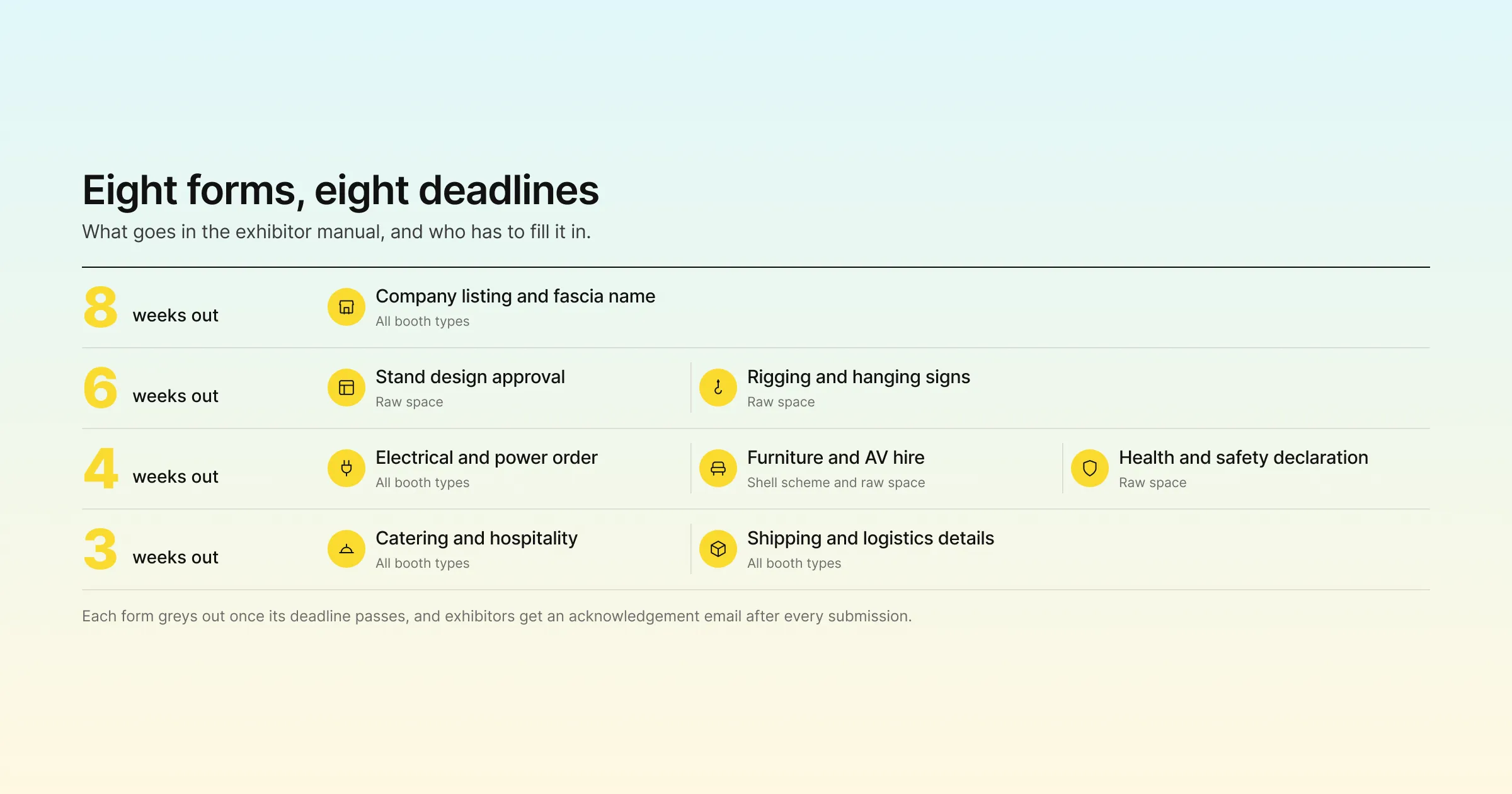
| Form | Typical deadline | Applies to |
|---|---|---|
| Company listing and fascia name | 8 weeks out | All booth types |
| Stand design approval | 6 weeks out | Raw space |
| Electrical and power order | 4 weeks out | All booth types |
| Furniture and AV hire | 4 weeks out | Shell scheme, raw space |
| Health and safety declaration | 4 weeks out | Raw space |
| Rigging and hanging signs | 6 weeks out | Raw space |
| Catering and hospitality | 3 weeks out | All booth types |
| Shipping and logistics details | 3 weeks out | All booth types |
Stage 6: Lead Scanning, Meetings and Engagement
Exhibitors judge your event on the leads and conversations it produces. Set them up to capture both before the doors open.
Lead Scanning
In the exhibitor portal, booth admins go to Leads Generation and App Users, add the team members who will scan at the booth, and send invites. Staff receive an email prompting them to download the Gevme mobile app on iOS or Android. If staffing changes, the booth admin deactivates the user in the user list.
At the event, staff scan attendees’ badges or Metacards (free digital business cards in the Gevme app) and add notes and ratings to each lead. Leads appear in real time in the portal, and only booth admins can export them as a CSV file. At GovInsider Festival of Innovation 2025, Gevme supported 1,200+ attendees with self-check-in kiosks, session tracking and Leads Scan.
Meetings
Exhibitors and sponsors can set up one-on-one meetings with potential clients. Gevme’s business matchmaking uses rules plus AI to match attendees with other people, sponsors, sessions and products, and supports scheduled and instant meetings, slot lengths, breaks and physical locations such as booths and rooms. Encourage exhibitors to set their availability before the event, when attendees are planning their schedules.
Booth Engagement
Exhibitors can run announcements and polls, chat with visitors and use gamification to draw people in. A treasure hunt that sends attendees to visit a set of booths is one of the simplest ways to spread traffic across the floor.
Stage 7: Final Checks and Event Day
Check Every Portal From the Exhibitor’s Side
One of the most useful organiser tools in Gevme is the ability to jump into any exhibitor’s portal view and see exactly what they see. A week before the event, open each sponsor’s portal and check that the profile is complete, the booth looks right, products are listed and lead scanning users are set up. Fix problems while there’s still time to reach the exhibitor.
Onsite Badges and Check-In
Exhibitor staff who were registered through badge redemption are already in your attendee data, so they check in like everyone else through Gevme’s onsite check-in. Badge printing rules can differ by ticket type, so exhibitor badges can look different from delegate badges. Staff can search by name, email, company or registration ID if someone forgets their QR code.
Plan for exhibitor build-up and breakdown days too. Exhibitors often arrive a day early, so have a check-in point open for them before the delegate doors open.
Stage 8: After the Event
The exhibitor relationship doesn’t end at breakdown. What you do in the week after the event shapes rebooking.
Remind booth admins to export their leads.
Share booth analytics so exhibitors can see visits and activity.
Send a short exhibitor survey with Gevme Survey, asking about onboarding, footfall and lead quality.
Review which forms came in late, which questions came up most often and which packages sold out, then update next year’s packages and manual.
For sponsors who need to show a return on their spend, ImpactAIQ, part of the Gevme Event Intelligence Ecosystem, turns event impact evidence into reporting on ROI and sponsorship value.
A Few Terms Worth Knowing
PIC (person in charge): the main contact at an exhibiting company who manages badges and forms.
Shell scheme: a pre-built booth with walls, fascia and basic furniture supplied by the organiser.
Raw space: floor space only, where the exhibitor builds or brings their own stand.
Badge quota: the number of staff or guest badges included in an exhibitor’s package.
Pro Tip: Treat the First Week After Signing as Onboarding Week
Most onboarding delays start in the first week after a contract is signed, when the exhibitor’s enthusiasm is highest and your team is busiest. Build a habit: within five working days of a signature, create the company, assign its package, add the booth admin and upload the PIC with their badge quota. Send one welcome email that covers the portal login, the badge process and the exhibitor manual deadlines together. Exhibitors who log in during that first week are far more likely to finish everything on time, and you’ll see who hasn’t logged in long before it becomes a problem.
Frequently Asked Questions
Exhibitor management is the process of onboarding and supporting sponsors and exhibitors from contract to event day and beyond. It covers packages, company profiles, booth setup, staff badges, service forms, lead scanning, meetings and post-event reporting.
An exhibitor registration checklist should cover packages, company setup, booth admin invitations, company profiles, booth content, badge quotas and redemption, exhibitor manual forms, lead scanning setup, meetings and a final check of every exhibitor’s portal. Each item needs a deadline and an owner.
Each exhibitor’s person in charge logs in to the exhibitor portal with their email and an OTP, then assigns badges from their quota to team members and guests. Each recipient is registered for the main event and receives an email confirmation.
Yes. You upload each exhibitor’s badge quota with their PIC details, and the PIC can only assign badges within that quota. You can track whether each company has partially or fully redeemed its badges, and exhibitors can buy additional badges through a separate landing page if needed.
Each form in Gevme’s Online Exhibitor Manual has a submission deadline, and the form greys out once that deadline passes. Exhibitors receive an acknowledgement email after each submission, and you can track who has completed every form.
Booth admins invite their staff to the Gevme mobile app through the exhibitor portal. Staff scan attendee badges or Metacards, add notes and ratings, and booth admins export all leads as a CSV file.
Yes. Gevme lets organisers jump into any exhibitor’s portal view instantly and see exactly what the exhibitor sees, which makes troubleshooting much faster.
Conclusion: A Prepared Exhibitor Is a Returning Exhibitor
Good exhibitor management starts with packages and ends with leads. Set up your tiers before you invite anyone, onboard each company within a week of signing, give PICs control of their own badges within a quota, move service forms into an online manual with firm deadlines, and get lead scanning ready before the doors open. Track logins and completion weekly, and check every portal from the exhibitor’s side before the event.
Gevme is event management software built by the industry, for the industry, with exhibitor and sponsor tools that connect to registration, check-in, the event app and reporting. Exhibitors manage their own presence while you keep oversight of every detail. See how it works on the exhibitors and sponsors page, or request a demo to walk through exhibitor onboarding for your next show.