On event day your attendees are busy. They are travelling, queueing, catching up with colleagues and checking their phones between sessions. Every message you send competes with their work inbox, their group chats and the event itself. Some of your messages will be read in seconds. Others will sit unopened until the next morning, long after they could have helped anyone.
An event announcement is any short message you send to registered attendees in the hours before and during your event to help them do something: get in faster, find a room, join a session, react to a change or take the next step. Good event day announcements answer a question just before people ask it. Bad ones repeat what attendees already know, arrive at the wrong moment or land in a channel nobody is watching.
This guide covers why event day messages get ignored, a practical timeline of what to send and when, how to pick the right channel for each message, how to write announcements people read, and how to set the whole schedule up in Gevme so it runs while your team is busy on the floor.
Key Takeaways
- Plan event day messages as a timeline before the event, so every announcement has a set moment, channel and audience.
- Send the practical “know before you go” email the evening before, with the venue, entry steps, QR code reminder and the first session time in the first few lines.
- Use the event app and on-page announcements for live updates on the day, and keep email for longer information people may need to look up later.
- Give every announcement one clear action, a short title that says what changed and a sender name attendees recognise.
- Send changes and urgent updates once, on every channel your attendees are using, and avoid follow-up messages that only repeat the same news.
- Target announcements to the people they affect, such as one session room, one ticket type or virtual attendees only.
- Review opens, clicks and app engagement after each event and cut the messages nobody acted on.
Why Most Event Day Messages Go Unread
Most event day messages go unread because they arrive at the wrong time, in the wrong place or with nothing new to say. Attendees rarely ignore an organiser on purpose. They are simply filtering, the same way they filter every other notification on a busy day.
Too Many Messages in a Short Window
Teams often send a reminder email, a second reminder, an app notification, a WhatsApp message and a “we’re starting soon” post, all within a few hours. By the third message, attendees have learnt that your updates are safe to skip. When something important finally changes, that habit works against you.
The Wrong Channel for the Moment
A detailed email about room changes is useful at 8pm the night before. At 10:55am, when someone is walking between halls, it is far less useful than a short app notification or an on-screen message. Each channel has moments when it works and moments when it does not.
Vague Titles and Buried Details
“Important update” tells the reader nothing. If the title does not say what changed, many people will not open the message at all. When they do, the key detail is often three paragraphs down, below a welcome note and a sponsor banner.
Messages Sent to Everyone
A change to Workshop B matters to the 80 people booked into Workshop B. Sending it to all 2,000 attendees teaches the other 1,920 to tune out. Targeting is one of the simplest ways to keep your announcements worth reading.
The Event Day Announcement Timeline
The most reliable way to get event day messages read is to plan the timeline in advance, with each message tied to a specific moment. The table below is a starting point for a one-day in-person or hybrid conference. Adjust the times to your own programme.
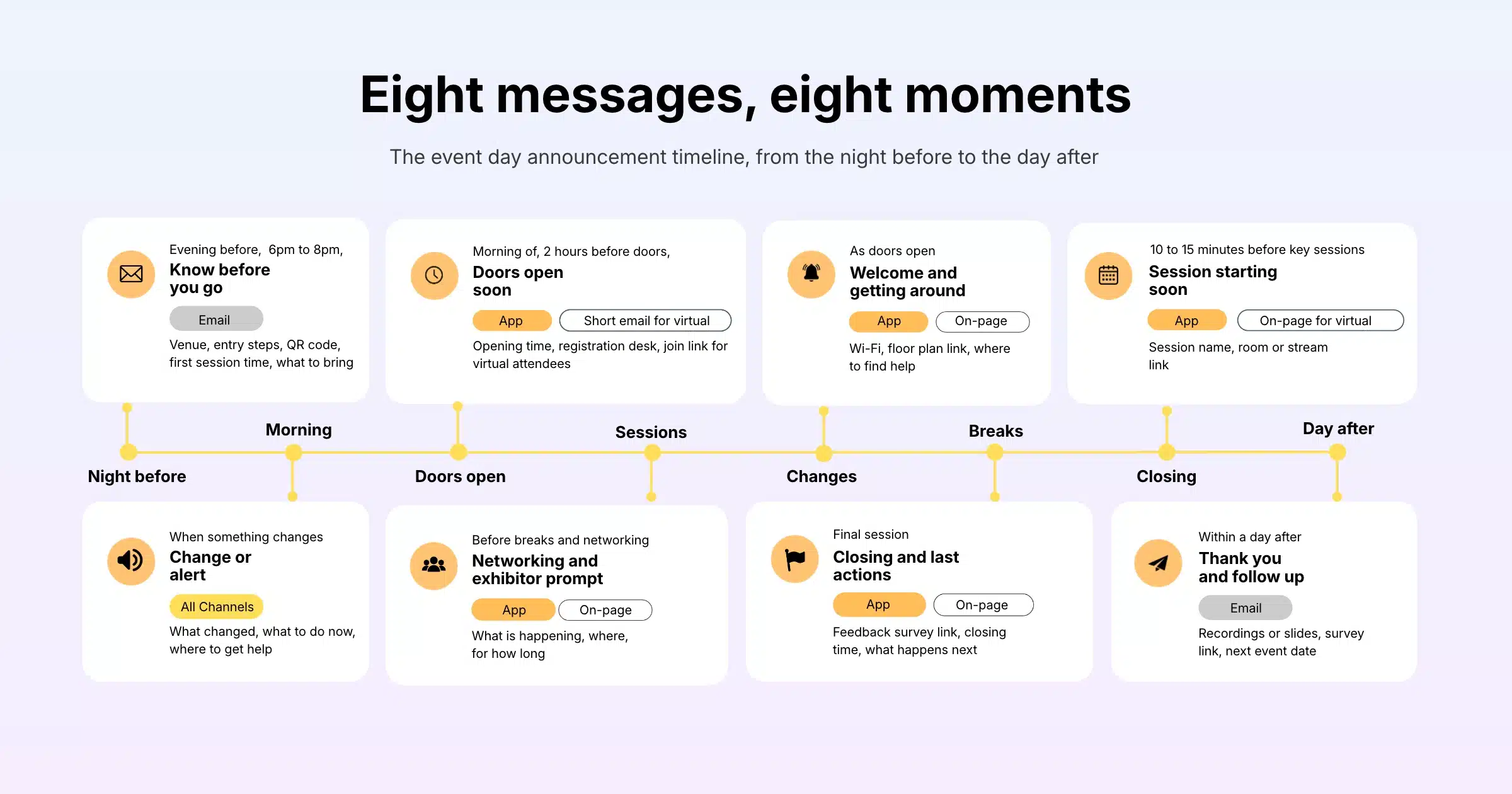
| When | Message | Best channel | What it must include |
|---|---|---|---|
| Evening before (around 6pm to 8pm) | Know before you go | Venue address, entry steps, QR code or e-ticket, first session time, what to bring | |
| Morning of (around 2 hours before doors) | Doors open soon | App notification, short email for virtual attendees | Opening time, registration desk location, join link for virtual attendees |
| As doors open | Welcome and getting around | App notification or on-page announcement | Wi-Fi details, floor plan link, where to find help |
| 10 to 15 minutes before key sessions | Session starting soon | App notification, on-page announcement for virtual | Session name, room or stream link |
| When something changes | Change or alert | Every channel your attendees are using | What changed, what to do now, where to go for help |
| Before breaks and networking | Networking and exhibitor prompt | App notification or on-page announcement | What is happening, where, for how long |
| Final session | Closing and last actions | On-page announcement, app notification | Feedback survey link, closing time, what happens next |
| Within a day after | Thank you and follow up | Recordings or slides, survey link, next event date |
The Night Before: Know Before You Go
The evening before is the best moment for your longest message. People are planning their morning, so they read practical details carefully. Put the essentials in the first few lines: start time, venue address, how to check in and what to have ready on their phone. Attach or link the e-ticket so nobody has to search their inbox at the registration desk.
For virtual attendees, the same email should carry the login link, the time zone and a short note on how to test their audio and browser before the event starts.
The Morning Of: Doors Open Soon
The morning message should be short. Attendees already have the details from the night before, so this one is a nudge with the single most useful fact for that moment, usually the opening time and where the registration desk is. Virtual attendees get their join link again, because many will look for it in their newest messages.
During the Day: Session Prompts
Session prompts work best 10 to 15 minutes before a session starts. Any earlier and people forget; any later and they are already committed to something else. Keep these for sessions you actively want to fill, such as the keynote, a sponsor showcase or a session in a hard-to-find room. Prompting every single session quickly becomes noise.
Changes, Delays and Alerts
When something changes, say what changed in the title, say what attendees should do in the first sentence and send it once on every channel you are using that day. A room change sent only by email will miss the people walking the venue. The same change sent only in the app will miss anyone who never downloaded it.
For anything related to safety, follow your venue’s own procedures and public address system first. Digital announcements support those procedures; they should never replace them.
Breaks, Networking and Exhibitors
Breaks are your best window for exhibitor and networking prompts, because attendees are already looking for something to do. A short message such as “Coffee is served in Hall 2. 12 exhibitors are demoing there until 3:30pm” gives people a reason to move, and it gives sponsors the foot traffic they paid for.
Closing and the Day After
Use the final session to ask for feedback while the event is still fresh. A link shown on screen or in the app during closing remarks will get far more responses than an email two days later. The day after, send a thank you email with recordings, slides and the survey link for anyone who missed it.
Picking the Right Channel for Each Message
The right channel is the one your attendees are looking at when the message matters. On event day that usually changes from email in the evening to the app and on-screen messages during the event.
Email suits longer messages people may want to come back to: the know before you go guide, the session schedule, the post-event follow up. It is less effective for anything time-sensitive during the day, because attendees check their inbox far less while they are in sessions. A clear event reminder email the night before does more work than three emails sent on the morning itself.
Event App Notifications
In-app notifications are the strongest channel during an in-person event, because attendees open the app to check the agenda, find rooms and scan contacts. A notification that appears while they are already in the app needs no extra effort to read. If you run an event mobile app, make downloading it part of your know before you go email, otherwise the app cannot help you on the day.
On-Page Announcements for Virtual and Hybrid Audiences
For virtual attendees, the event platform itself is the main screen. An announcement that pops up on the page they are watching is far more likely to be seen than an email. This matters even more for hybrid events, where you need the virtual audience to hear the same news as the people in the room at the same moment.
Onsite Signage, Screens and the Host
Some messages are best said out loud. Your host or MC can repeat the most important announcement between sessions, and screens near the registration area can show the day’s key timings. These channels reach people who never opened the app and keep everyone on the same page.
SMS and Messaging Apps
SMS is useful for confirmations and urgent messages when you have permission to text attendees. Use it sparingly. People react to text messages quickly, which makes them powerful for real emergencies and irritating for anything else.
How to Write Event Announcements People Read
People read announcements that tell them something new and useful in the first glance. The writing matters as much as the timing.
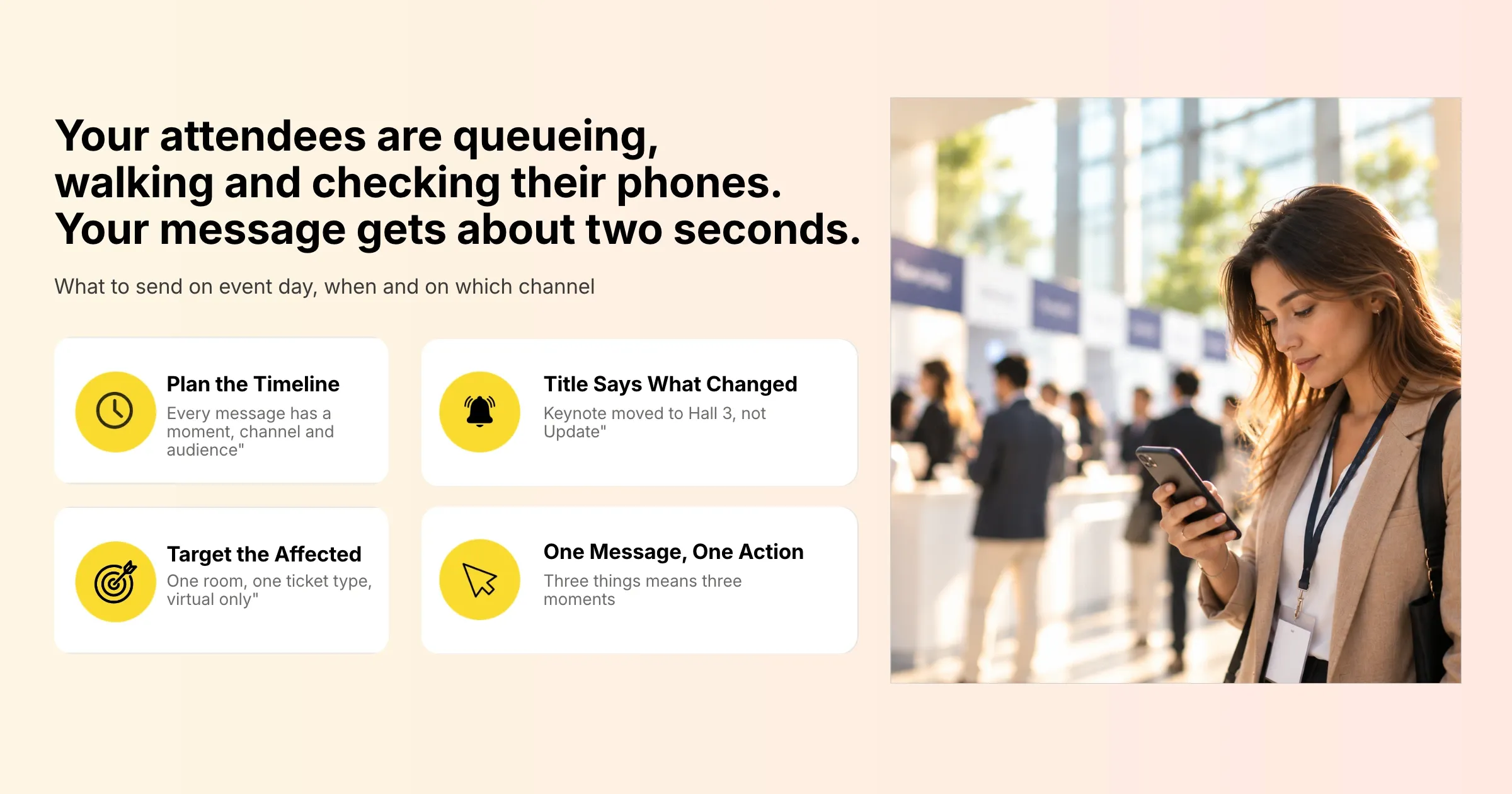
Put the Change in the Title
The title should work on its own, because many people will only see the title on a lock screen. “Keynote moved to Hall 3” is better than “Programme update”. “Doors open at 8:30am” is better than “Good morning from the team”.
One Message, One Action
Each announcement should ask attendees to do one thing: go to a room, open a link, complete a survey. When a message carries several actions, people tend to do none of them. If you have three things to say, send them at three different moments, or put them in the evening email.
Keep It Short
Two or three short sentences are enough for most event day messages. If an announcement needs a long explanation, link to a page that holds the details and keep the announcement itself to the headline and the action.
Use a Sender Name People Recognise
Attendees are more likely to open a message from the event name or a named host they know from the stage. Keep the sender name consistent across all your messages so people learn to trust it.
Ready-to-Use Announcement Templates
Copy these and adjust the details for your event:
- Know before you go (email title): “Tomorrow at [Venue]: your ticket, entry steps and first session”
- Doors open (app): “Registration opens at 8:30am at the Level 1 lobby. Have your QR code ready.”
- Session prompt (app or on-page): “The keynote starts in 10 minutes in Hall 1. Virtual attendees can join from the Main Stage page.”
- Room change (all channels): “Workshop B has moved to Room 204. Same time, 2pm.”
- Delay (all channels): “The afternoon panel will start at 3:15pm. Coffee is being served in the foyer until then.”
- Networking prompt (app): “12 exhibitors are demoing in Hall 2 until 3:30pm. Drop by during the break.”
- Feedback (on-page and app): “Thank you for joining us today. Tell us what worked in a two-minute survey.”
- Thank you (email title): “Slides, recordings and a quick survey from [Event Name]”
Setting Up Event Day Announcements in Gevme
Gevme lets you plan most of your event day messages before the event, then send them automatically at the right moment, across email, event pages and the mobile app. Here is how each part works.
Schedule Emails Around Your Event Dates
In Gevme Registration, email campaigns can be sent straight away, scheduled for a specific date and time, or scheduled based on a milestone such as your event start date, your event end date or the sale start date of a ticket. You can also schedule a campaign to go out a set time after another campaign has been sent. That means your know before you go email, your morning reminder and your thank you email can all be set up days in advance and adjusted automatically if your event dates move.
Campaigns use a drag-and-drop email builder, saved templates and personalisation tags, so each attendee can see their own name, ticket type or session details. Once a campaign is scheduled it becomes read-only, so check the content and the recipient list before you confirm. Confirmation emails can carry each attendee’s e-ticket with its QR code, and attendees can also find their tickets again in Gevme’s event registration software through the confirmation page or Gevme Wallet, which helps on the morning when people cannot find the original email.
Push Announcements to Event Pages and the Mobile App
In Gevme Omnichannel, the Announcements module sits under Engagement. Each announcement has a title, a short description, an optional call-to-action button (with its own text, link and colours) and a sender profile with a name and image. You choose where it appears on the page, from bottom left to centred, and whether it closes automatically after a set number of seconds or stays until the attendee closes it.
You also choose where the announcement is sent: to the event pages, to the mobile app, or to both, and to all pages at the event or only specific ones. That last option is how you target an announcement to a single session or track. Timing is just as flexible. An announcement can go out now, at a scheduled date, time and time zone, or based on a trigger, such as when a page loads or a set number of minutes after it loads.
One detail to remember: the platform setting defaults to the page only. To reach phones, change it to “Mobile” or “Page and Mobile” before you set it live. In the Gevme app, attendees see notifications through the bell icon on the home screen and on each event’s home screen, with a red dot showing anything unread. The Gevme knowledge base has a step-by-step guide to setting up announcements if you want to walk through each setting.
You can save announcements as drafts, so the whole day’s messages can be written and reviewed before the event, then set live or scheduled once they are approved. Scheduled, sent and draft announcements are all listed in one place, which makes it easy for a second team member to check what is going out and when. These announcements work alongside Gevme’s live polls, moderated Q&A and chat, part of its wider set of engagement tools.
Send Messages to the Right People
Smart lists in Gevme Registration are saved searches that update in real time. Build one for each group you need to reach, such as a single ticket type, a workshop or virtual attendees only, and use it as the recipient list for a campaign. New registrants who match the criteria join the list automatically, so a message scheduled a week earlier still reaches the latest sign-ups.
Check What Worked
After the event, Gevme’s email statistics show opens, clicks, bounces, complaints and unsubscribes for each campaign, and you can export them. Compare them with your timeline. If the morning reminder had low opens but the evening email did well, you have a clear reason to drop one message next time. Fewer messages that people act on will always do more than a long sequence nobody reads.
At larger events this planning pays off quickly. Tech Week Singapore 2024 ran 7 parallel events for more than 26,000 attendees on Gevme, the kind of scale where every unnecessary message adds noise for thousands of people at once.
Common Event Day Announcement Mistakes
Most of these mistakes come from writing messages on the day, under pressure. Planning the timeline in advance avoids nearly all of them.
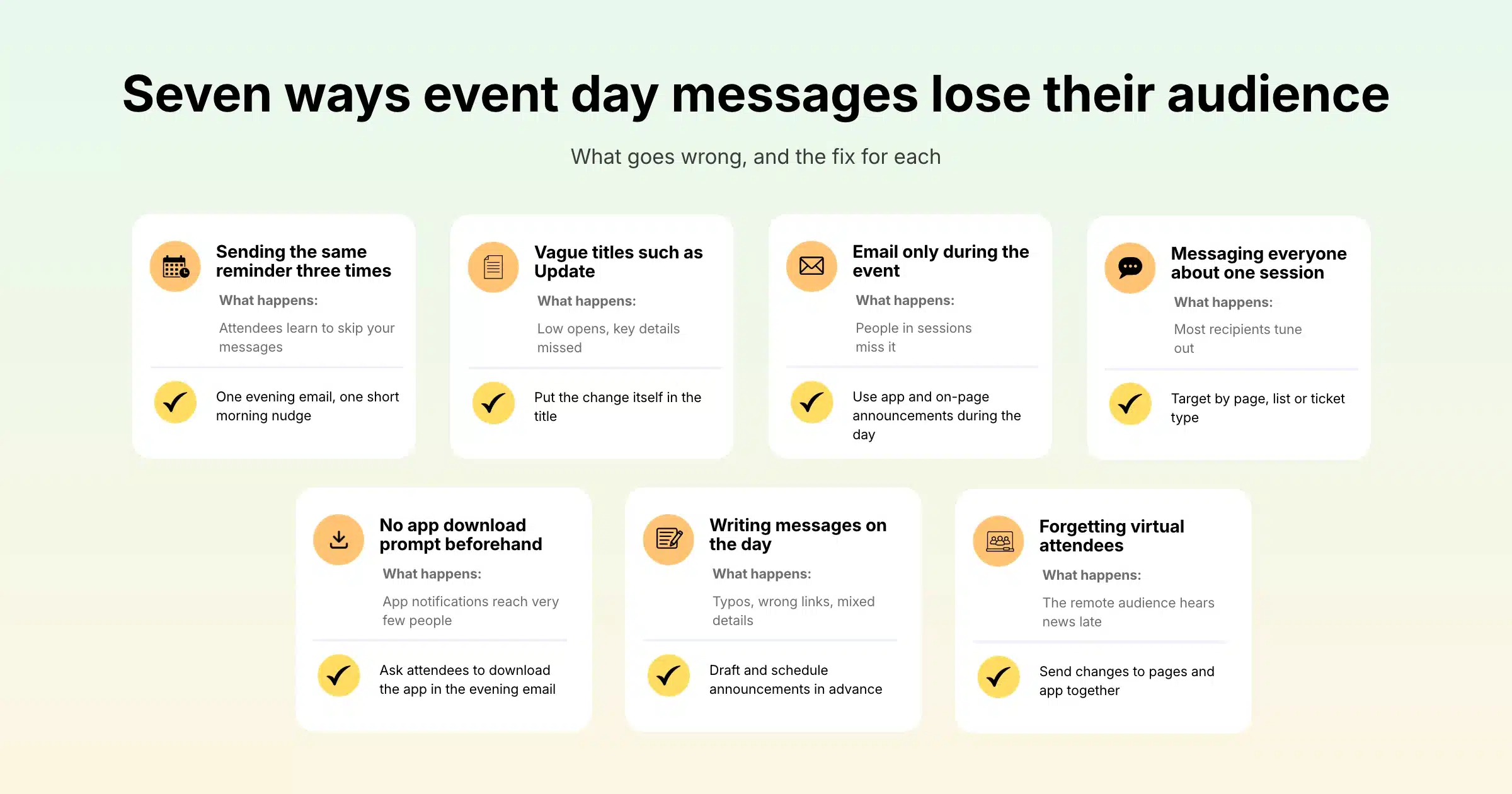
| Mistake | What happens | Fix |
|---|---|---|
| Sending the same reminder three times | Attendees learn to skip your messages | One evening email, one short morning nudge |
| Vague titles such as “Update” | Low opens, key details missed | Put the change itself in the title |
| Email only during the event | People in sessions miss it | Use app and on-page announcements during the day |
| Messaging everyone about one session | Most recipients tune out | Target by page, list or ticket type |
| No app download prompt beforehand | App notifications reach very few people | Ask attendees to download the app in the evening email |
| Writing messages on the day | Typos, wrong links, mixed details | Draft and schedule announcements in advance |
| Forgetting virtual attendees | Remote audience hears news late | Send changes to pages and app together |
A Few Terms Worth Knowing
- Push notification: a short alert that appears on a phone’s lock screen or inside an app, even when the person is not reading their email.
- On-page announcement: a message that pops up on the event web page or virtual venue an attendee is viewing.
- Milestone scheduling: sending an email at a set time before or after a key date, such as the event start or end date, so it moves automatically if the date changes.
- Smart list: a saved search of attendees that updates itself as people register or change their details.
Pro Tip
Write every event day announcement before the event, put them in a single shared sheet with columns for time, channel, audience and exact wording, and have someone outside the core team read it from top to bottom. They will spot the duplicate reminders, the missing room numbers and the message that only makes sense if you already know the agenda. Then load the approved messages into Gevme as scheduled campaigns and draft announcements, so on the day your team only has to write the messages nobody could have predicted.
Frequently Asked Questions
An event announcement is a short message sent to registered attendees to share practical information or a change, such as start times, room locations, session reminders or delays. On event day these messages usually go out by email, app notification or an on-screen message on the event platform.
Send the main event reminder email the evening before the event, ideally between 6pm and 8pm in the attendees’ time zone. That is when people plan their morning and read practical details carefully. A second, much shorter reminder on the morning of the event is enough for most events.
Most one-day events need between five and eight announcements in total, counting the evening email, the morning nudge, a few session or networking prompts and the closing message. Add unplanned messages only when something changes. If you find yourself sending more, check whether some of them could be combined or targeted to a smaller group.
App notifications and on-page announcements work best for live updates, because attendees are already looking at the event app or the virtual venue during the day. Email works better for longer information sent the night before and the day after.
Send live announcements to the event pages and the mobile app at the same time. In Gevme Omnichannel you can set each announcement to “Page and Mobile” and choose whether it appears on all pages or specific ones, so virtual and in-person attendees hear the same news together.
Yes, you can schedule most event day announcements in advance. In Gevme, email campaigns can be scheduled for a specific time or relative to your event start and end dates, and Omnichannel announcements can be scheduled for a set date, time and time zone or triggered when a page loads.
An event announcement should include what is happening, what the attendee needs to do and where or when to do it. Put the key change in the title, keep the body to two or three sentences and add a single link or button if the attendee needs to take an action.
Conclusion: Plan the Day Before It Starts
Attendees read event day announcements when each one arrives at the right moment, on the channel they are using, with a title that tells them what changed. That comes from planning: a simple timeline, one action per message, clear targeting and a firm limit on repeats. Write the messages in advance, test them with someone outside the team, and review the numbers afterwards so each event’s plan is shorter and sharper than the last.
Gevme brings that plan into one place. Campaigns scheduled around your event dates, announcements pushed to event pages and the mobile app, smart lists for targeting and email statistics for review all sit alongside your registration and attendee data, so every message goes to the right people at the right time. If you want to see how it would work for your next event, request a demo and our team will walk you through it.