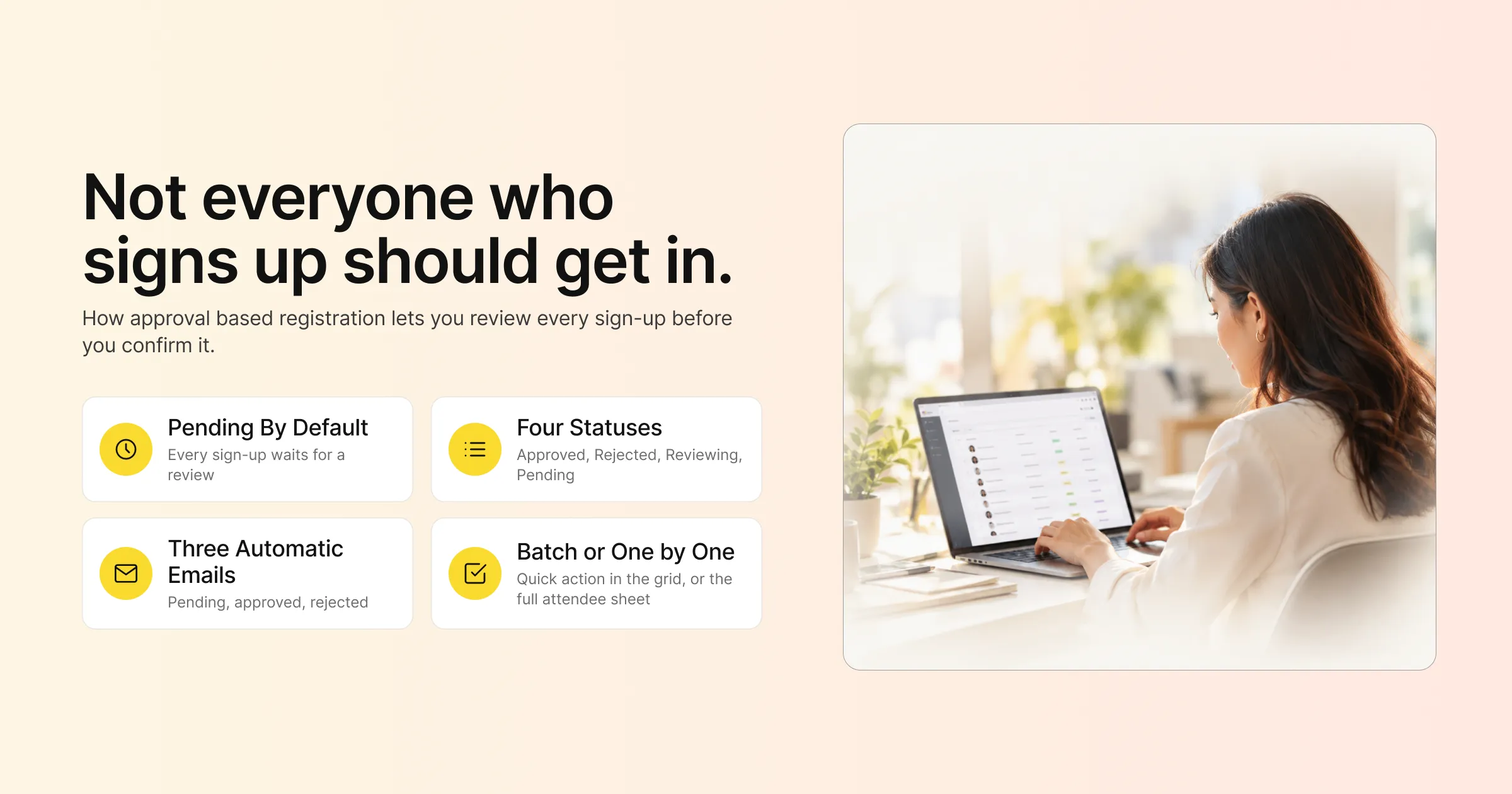
Some events can’t be open to anyone with an email address. A government briefing may be limited to officials. Similarly, a buyer programme at a trade show is meant for people with real purchasing power. A closed-door roundtable for chief information officers loses its value the moment a dozen vendors slip in. For events like these, the question is who should be in the room, and the registration form is where you decide.
Approval based registration is a registration flow where every sign-up goes into a pending state until someone on your team reviews it and either approves or rejects it. The person only gets confirmed once you say yes. It gives you a checkpoint between “someone filled in the form” and “someone is on the attendee list”, which is exactly what curated, high-value or sensitive events need.
This guide covers what approval based registration is, when it makes sense, how to decide who gets approved, how the flow works in Gevme Registration, the emails that go out at each step, other ways to control access for paid and invitation-only events, and the mistakes that slow approvals down or put off good attendees.
Key Takeaways
Approval based registration puts every new sign-up into a pending status until your team approves or rejects it, so nobody is confirmed without a review.
In Gevme Registration, manual approval works for free events and is switched on as an add-on by the Gevme support team.
Organisers can mark each registration as Approved, Rejected or Reviewing, or reset it to Pending, and can act on one record or several at once from the attendee grid.
Three automatic emails cover the flow: a pending acknowledgement on sign-up, an approval email and a rejection email, so you should write all three before you open registration.
Write your approval criteria down before launch and collect only the form fields you need to apply them, such as job title, company and organisation type.
For paid events or tighter control, combine registration rules, membership validation, access codes and invitation-only settings to filter people before they reach the form.
Set a review rhythm (for example, every weekday at 10am) and tell applicants how long a decision takes, because slow approvals cost registrations.
What Approval Based Registration Means
Approval based registration (also called manual approval or registration approval) adds a review step to your sign-up process. Someone completes your registration form as normal. Instead of receiving an instant confirmation, they receive an acknowledgement that their registration is being reviewed. Your team then looks at the details and decides.
It differs from an open event, where anyone who registers is confirmed straight away. It also differs from an invitation-only event, where only people you’ve invited can reach the form at all. With approval based registration, the form can be open to anyone, but entry depends on your decision.
Many organisers use a mix. The registration page might be open to the public, with approval as the filter. Or it might be invitation only, with approval as a second check for people who forward their invitation to colleagues.
When Approval Based Registration Makes Sense
Approval adds work for your team, so use it where the quality or eligibility of attendees matters more than raw numbers.
Closed-Door and Senior Audience Events
Executive roundtables, leadership summits and invite-only dinners promise attendees a room full of peers. If the room fills with junior staff or salespeople, the people you most wanted will not come back next year. Approval lets you check job title and company before confirming.
Government and Public Sector Events
Briefings and programmes run by government agencies often need to confirm that attendees belong to eligible organisations. Approval gives the organising agency a clear record of who was reviewed and why each person was let in.
Hosted Buyer and Trade Programmes
Trade shows often run hosted buyer programmes, where qualified buyers receive free entry, meetings with exhibitors or other benefits. Exhibitors pay for access to those buyers, so the programme only works if each buyer is checked for purchasing authority and fit.
Free Events With Limited Capacity
A free workshop with 40 seats can attract 300 sign-ups. First come, first served is fair, but it may not give you the right mix of people. Approval lets you pick a balanced group, such as a spread of industries, or priority for members.
Events Where Competitors Should Not Attend
Product launches, partner briefings and customer-only user groups sometimes need to keep out competitors or press. A quick review of the company field catches most of these.
Member and Association Events
Associations often run events where members attend free and non-members pay or can’t attend. Approval works here, although membership validation (covered later) is often a faster option because it checks people automatically.
How to Decide Who Gets Approved
Approval only works well when everyone on your team applies the same rules. Agree on criteria before registration opens and keep them written down where reviewers can see them.
Write Down Your Criteria
Start with the purpose of the event. If the goal is peer discussion among senior IT leaders, your criteria might be: “Head of IT or above, working at an end-user organisation, no IT vendors or consultancies.” Clear criteria make each decision faster and easier to explain.
Collect Only the Fields You Need
Every criterion needs a matching field on the registration form. If you approve by seniority, ask for job title or a job level dropdown. Likewise, if you approve by organisation type, add a dropdown with the types you accept. If you need proof of eligibility, such as a government department or member number, ask for it.
Avoid adding fields “just in case”. A longer form means fewer completed registrations, and you’ll be approving from a smaller, possibly less suitable pool.
Use Structured Answers Where Possible
Free-text answers are slow to review. “Senior Manager, Strategic Partnerships APAC” takes longer to judge than a dropdown answer of “Director”. Dropdowns and radio buttons make reviewing faster and keep answers consistent across hundreds of sign-ups.
Approval Criteria Examples by Event Type
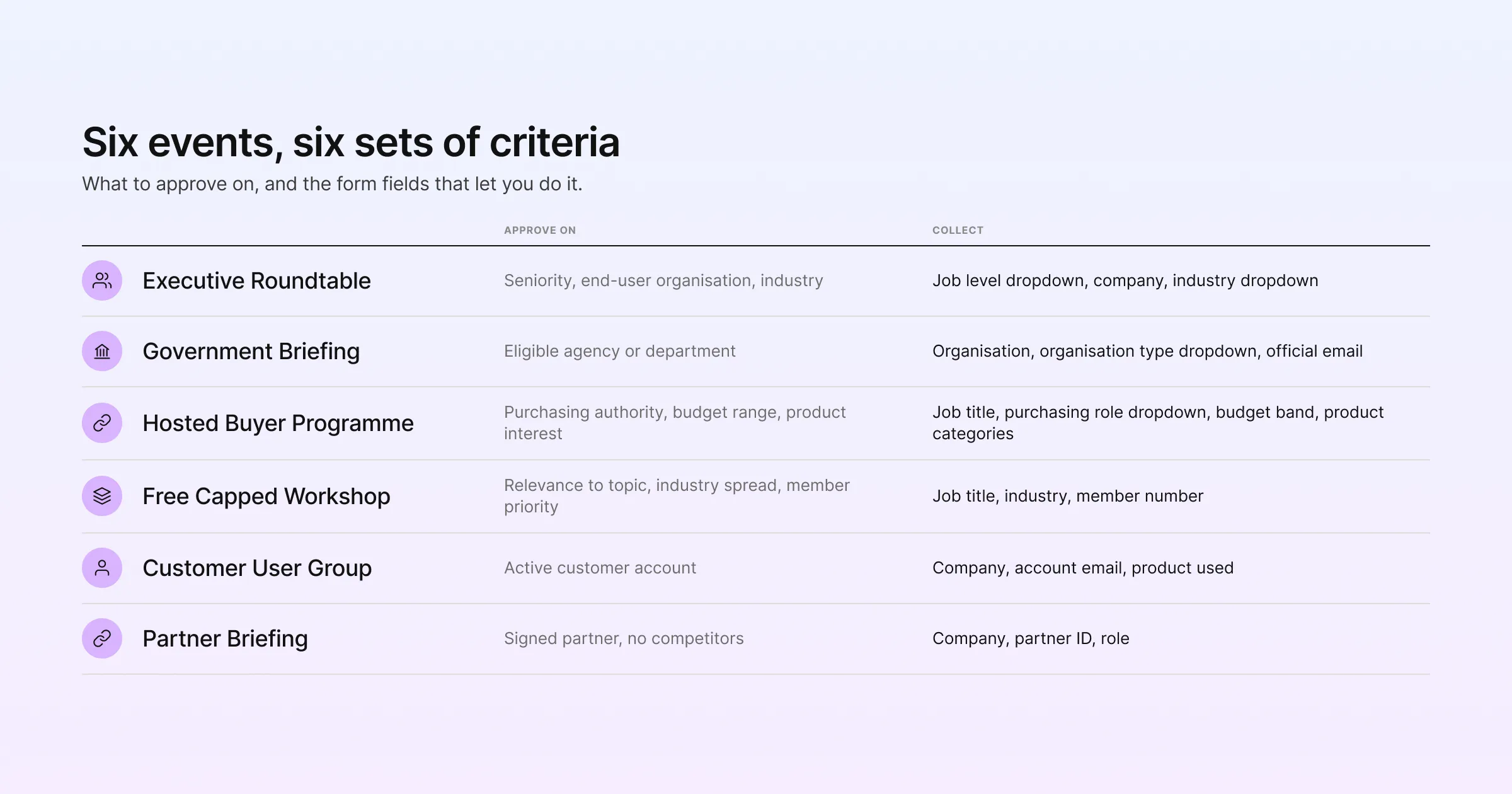
| Event type | Typical approval criteria | Form fields to collect |
|---|---|---|
| Executive roundtable | Seniority, end-user organisation, industry | Job level (dropdown), company, industry (dropdown) |
| Government briefing | Eligible agency or department | Organisation, organisation type (dropdown), official email |
| Hosted buyer programme | Purchasing authority, budget range, product interest | Job title, purchasing role (dropdown), budget band, product categories |
| Free capped workshop | Relevance to topic, industry spread, member priority | Job title, industry, member number |
| Customer user group | Active customer account | Company, account email, product used |
| Partner briefing | Signed partner, no competitors | Company, partner ID, role |
How Approval Based Registration Works in Gevme
Gevme Registration includes a manual approval feature built for free events. It is an add-on, and the Gevme support team switches it on for your account. The manual approval guide in the Gevme knowledge base covers each screen in detail.
The Registration Flow
When manual approval is on, every submitted registration enters a Pending status by default. The attendee receives a “Registration Pending Acknowledgement” email confirming that their details have arrived and are under review. Nobody is confirmed until your team acts.
Four Statuses for Reviewers
Your team can move each registration into one of four statuses:
Approved: confirms the person and sends the approval email automatically.
Rejected: declines the registration and sends the rejection email automatically.
Reviewing: marks a record as under consideration, which is useful when a colleague needs to check it or you’re waiting on more information.
Reset to Pending: reverses a decision and puts the record back in the queue.
The Reviewing status is handy for larger teams. One reviewer can flag a borderline case, and another can make the final call without anyone losing track of it.
Where to Approve
There are two places to make decisions. The Quick Action in the attendee grid lets you select one record or several and approve or reject them together, which is the fastest option when a batch of sign-ups clearly meets your criteria. The Attendee Sheet opens one registrant’s full details so you can review them carefully before deciding, which suits borderline cases.
The Three Automatic Emails
Manual approval uses three system emails. Write each one before you open registration, since they shape how applicants feel about your event even when the answer is no.
| When it is sent | What to include | |
|---|---|---|
| Registration Pending Acknowledgement | As soon as someone submits the form | Thank them, explain that registrations are reviewed, and say when they will hear back |
| Registration Approved | When your team approves the registration | Confirm their place, the date, venue or login details, and what to do next |
| Registration Rejected | When your team rejects the registration | Thank them for their interest, give a brief reason if you can, and point to another event, recording or resource |
A good rejection email keeps the door open. “This roundtable is limited to heads of IT at end-user organisations. We’d love to see you at our open conference in March” is far better than a bare “Your registration was not approved.”
Combining Approval With Other Form Tools
Manual approval sits on top of Gevme’s form builder, so you can use the same field tools as any other event on Gevme’s event registration software. Compulsory fields make sure reviewers always have the information they need. Unique-value fields stop the same person from registering twice. Conditional follow-up questions only appear when an answer needs them, such as asking for a member number only when someone selects “I am a member”. Pre-filled fields help returning attendees and invitees, so known contacts don’t retype their details. You can read more about building these on Gevme’s custom registration forms page.
For Singapore audiences, Singpass Myinfo integration can fill in registration forms with verified data from government sources after the person gives consent through Singpass. That gives reviewers more confidence in details such as name, and saves applicants from typing.
Other Ways to Control Who Gets In
Manual approval is one option. Gevme has several other access controls that filter people automatically or before they reach the form. They work for paid and free events, and many organisers combine them with approval.
Registration Rules
Registration rules let you allow or block registrations based on form answers, contact lists or registration for another event. For example, you can block registrations where the organisation type is “Vendor”, allow only people on an imported list of eligible agencies, or allow only people who attended a previous event. Rules run automatically, so your team only reviews the cases that pass.
Membership Validation
Membership validation checks people against a list of eligible members before they register. Members sign in with email, mobile number or Google, and an OTP (one-time password) login makes sure only the owner of that email can pull up the member’s data. You can place the check on the registration form (after ticket selection) or on the event page itself (before the event details are shown).
You choose whether non-members can still register as new users or whether the event is restricted to members only, and you can customise the message people see when they are turned away. Members who pass the check see a welcome message and a form pre-filled with their details. Membership lists can come from the current event, other events or your Contacts.
Invitation Only and Password Protected Events
For private events, Gevme offers two access types. Invitation only means people must receive an email invitation with a unique registration link before they can register. Password protected means the event page, and therefore registration, can only be opened with a password.
One detail catches people out: marking an event as “Private” on its own does not restrict access. It removes social sharing options, but anyone with the link can still register. To limit access, you need invitation only or password protection.
RSVP Events
For fully invitation-led events, the RSVP registration type creates a private event that only invited people can access. Invitees answer yes or no. A yes takes them to a form, while a no can capture a reason. RSVP events can’t include paid items, and the RSVP type can’t be changed after you create the event.
Access Codes and Hidden Tickets
For paid events, access codes open hidden tickets. You can create a hidden ticket for a specific group, such as hosted buyers or VIP guests, and share the access code only with people you have already vetted. Everyone else sees the public tickets and nothing more.
Choosing the Right Access Control
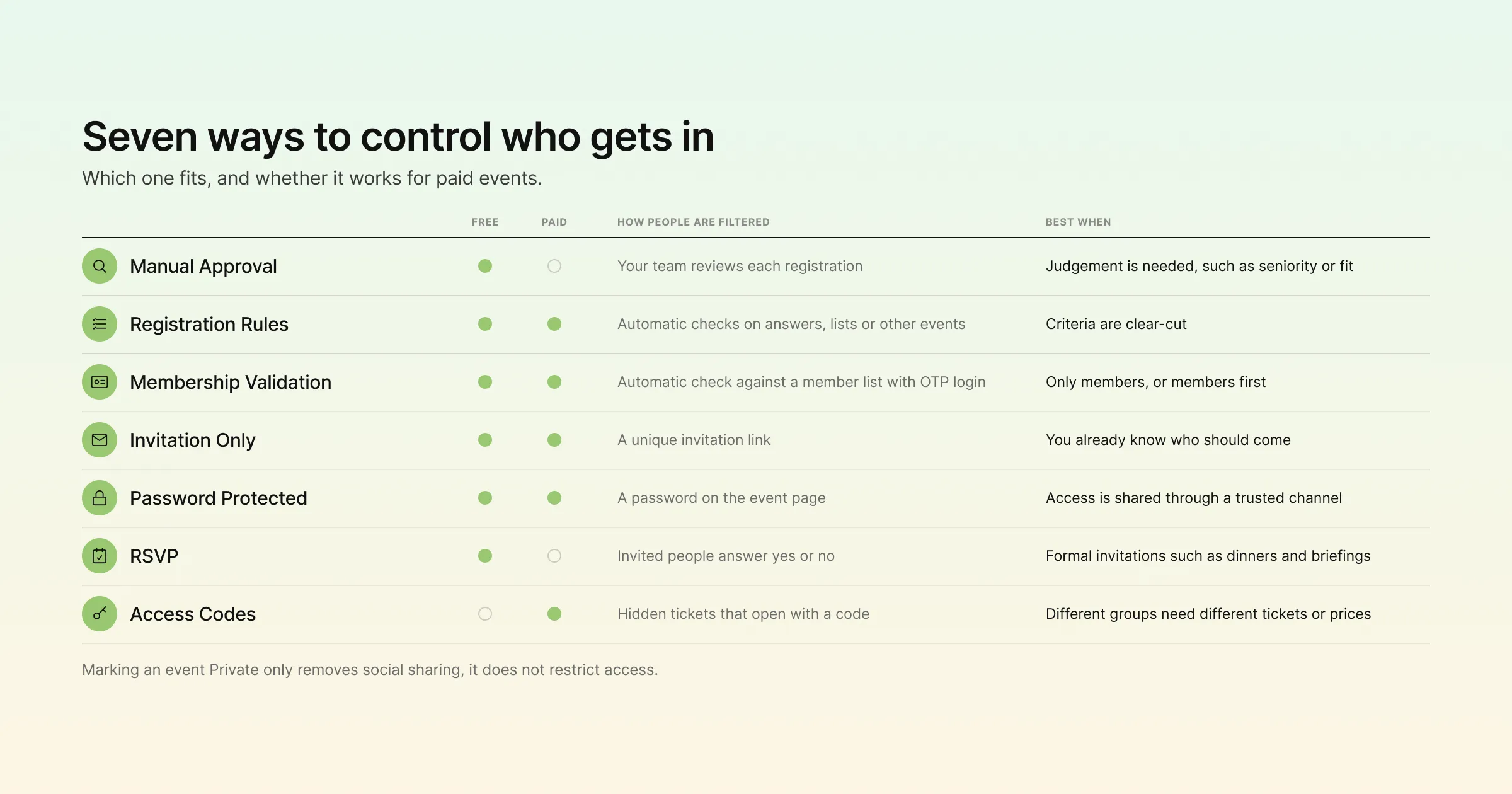
| Method | Works for | How people are filtered | Best when |
|---|---|---|---|
| Manual approval | Free events | Your team reviews each registration | Judgement is needed, such as seniority or fit |
| Registration rules | Free and paid events | Automatic, based on answers, lists or other events | Criteria are clear-cut and can be checked by a rule |
| Membership validation | Free and paid events | Automatic check against a member list with OTP login | Only members (or members first) should register |
| Invitation only | Free and paid events | Only people with a unique invitation link can register | You already know exactly who should come |
| Password protected | Free and paid events | Only people with the password can open the event page | You share access through a trusted channel |
| RSVP | Free events | Invited people answer yes or no | Formal invitations such as dinners and briefings |
| Access codes | Paid events | Hidden tickets open only with a code | Different groups pay different prices or need special tickets |
Running the Review Process Day to Day
The setup is the easy part. Keeping approvals moving while registration is open is what decides whether the process works.
Set a Review Rhythm
Pick a fixed time to review new registrations, such as every weekday at 10am, and stick to it. A predictable rhythm means no registration waits more than a day. Mention the timeframe in your pending acknowledgement email (“We review registrations every weekday and you’ll hear from us within one working day”).
Decide Who Has the Final Say
Give one person the authority to approve borderline cases. Other reviewers can approve clear cases and move uncertain ones into Reviewing. This avoids the same registration bouncing between colleagues.
Approve in Batches
Use the attendee grid’s search to bring up clear matches, such as everyone from an eligible organisation type, then approve them together with the Quick Action. Save one-by-one reviews in the Attendee Sheet for the cases that need a closer look.
Keep an Eye on Pending Numbers
A growing pile of Pending registrations close to the event is a warning sign. People who wait too long make other plans. If the queue grows, add a second reviewer or loosen a criterion that’s catching too many good attendees.
Plan for the Day
Approved attendees are on your attendee list like everyone else, so they check in through Gevme’s onsite check-in at kiosks or staffed counters like everyone else. Brief your door team on what to do if someone who was rejected turns up anyway, and keep a short list of last-minute approvals ready.
Mistakes That Slow Approvals or Lose Good Attendees
Vague criteria. “Relevant attendees only” leads to inconsistent decisions. Write rules your whole team can apply the same way.
Silence after sign-up. Without a clear pending email, applicants don’t know whether their registration worked. Some will register twice, and others will give up.
Slow decisions. A week-long wait tells senior attendees the event isn’t organised. Aim for a decision within one or two working days.
Harsh rejection emails. A cold rejection can damage your brand with people who may be a fit for future events. Thank them and suggest another option.
Using approval where a rule would do. If a criterion can be checked automatically, such as membership or a list of eligible agencies, use registration rules or membership validation and save manual review for real judgement calls.
Forgetting data protection. You’re collecting extra details to make decisions, so only ask for what you need. Gevme is certified to ISO 27001, ISO 27017 and ISO 27018 and SOC 2 Type 2, and supports GDPR and PDPA compliance, with details on the Gevme trust centre.
A Few Terms Worth Knowing
Manual approval: a registration setting where each sign-up waits for an organiser’s decision before it is confirmed.
Pending status: the state a registration sits in after it is submitted and before it is reviewed.
Registration rules: automatic conditions that allow or block a registration based on answers, lists or other events.
OTP (one-time password): a single-use code sent to an email or phone to confirm the person signing in owns it.
Pro Tip: Let Rules Do the First Pass
Before switching on manual approval, see which of your criteria a machine can check. If only members, past attendees or people from an approved list of organisations should attend, set those up with membership validation or registration rules so ineligible people are filtered out automatically. Then use manual approval only for the judgement calls a rule can’t make, such as whether a job title is senior enough. Your reviewers will look at fewer, better registrations, and applicants will get faster answers.
Frequently Asked Questions
Approval based registration is a sign-up flow where each registration stays pending until an organiser reviews it and approves or rejects it. Only approved people are confirmed, which lets you control exactly who attends.
Gevme’s manual approval feature is currently available for free events only. For paid events, you can control access with registration rules, membership validation, invitation-only or password-protected settings, and access codes for hidden tickets.
Manual approval is an add-on, and the Gevme support team switches it on for your account. Once it’s active, every new registration for that event enters a Pending status until your team reviews it.
Attendees receive three automatic emails. The first is a pending acknowledgement when they submit the form, followed by either an approval email or a rejection email, depending on your decision. You can edit all three to match your event and tone.
Yes. In the attendee grid, select multiple records and use the Quick Action to approve or reject them together. For borderline cases, open the Attendee Sheet to review one person’s details before deciding.
With approval, anyone can complete the form, but your team decides who gets in. With invitation only, people can only register through a unique link sent in an email invitation, so the filter happens before they reach the form.
Aim to make a decision within one or two working days. Set a regular review time, say how long the wait is in your pending email, and add a reviewer if the queue grows close to the event.
Conclusion: Decide Who Is in the Room Before They Arrive
Approval based registration gives you a checkpoint between a completed form and a confirmed attendee. Write clear criteria, collect only the fields you need to apply them, prepare all three emails, and review on a fixed rhythm so good attendees aren’t kept waiting. Where a rule can make the decision, let registration rules or membership validation handle it, and keep manual review for the calls that need a human.
Gevme is event management software built by the industry, for the industry, and its registration tools cover approvals, access rules, membership checks, private events and onsite check-in in one place. Approved attendees flow straight into your attendee list, your event website and your reports. To see how an approval flow would work for your next curated event, request a demo.